
For vets: setting up your login
For vet practices: click Set Up Your Password in the invitation email, choose a password of at least 8 characters and click Set Password, then log in at petdesk.co.uk/app/vp/login with your practice email. The link lasts 7 days. If it has expired, or you forget your password, click Forgot password? on the login page and PetDesk emails you a code that works for 5 minutes.
When a business that uses PetDesk invites your practice to its vet portal, PetDesk emails your practice a link for choosing a password. This guide is for the vet practice: it covers the invitation, setting your password, and what to do if the link has expired.
1. Open the invitation email
The email is titled "You've been invited to the business's name on PetDesk". It goes to the address the business holds for your practice, usually a shared one such as reception. Click Set Up Your Password. The link works for 7 days.
Already use the vet portal for another business? Then you get "New practice access added" instead, and there's nothing to set up. Log in with your usual email address and password, and the new business appears when you choose which one to work with.
2. Choose a password
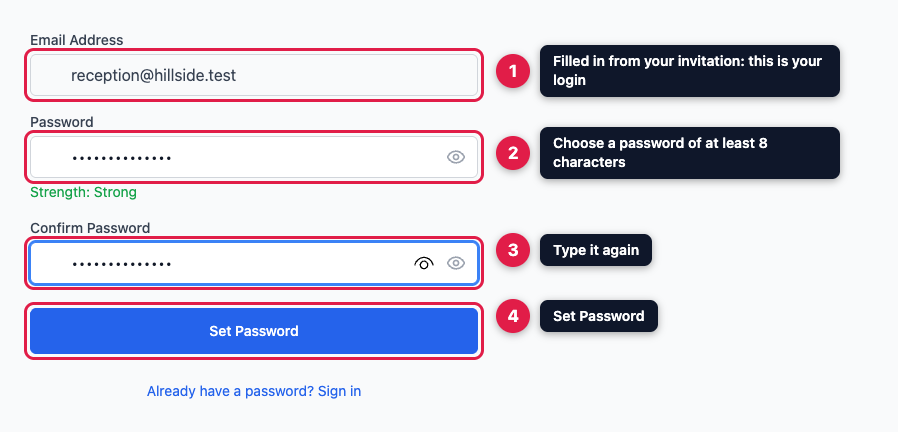
The page shows your email address, which is your login. You can't change it here. Type a password of at least 8 characters, type it again in Confirm Password, then click Set Password. Everyone at your practice logs in with the same email address and password, so choose one you can share safely.
3. Log in
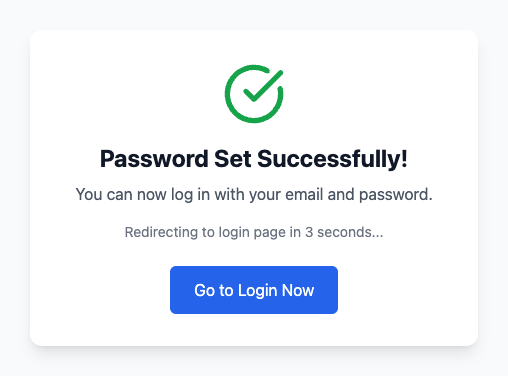
A green tick confirms "Password Set Successfully!", and after a few seconds you're taken to the vet portal login page. Log in with your email address and new password. The login page is at petdesk.co.uk/app/vp/login, and most businesses also link to it from their website.
If the link has expired, or you've forgotten your password
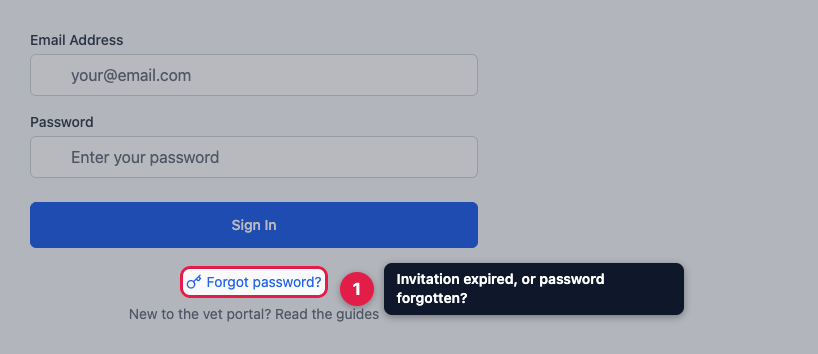
You don't need a new invitation. On the vet portal login page, click Forgot password?
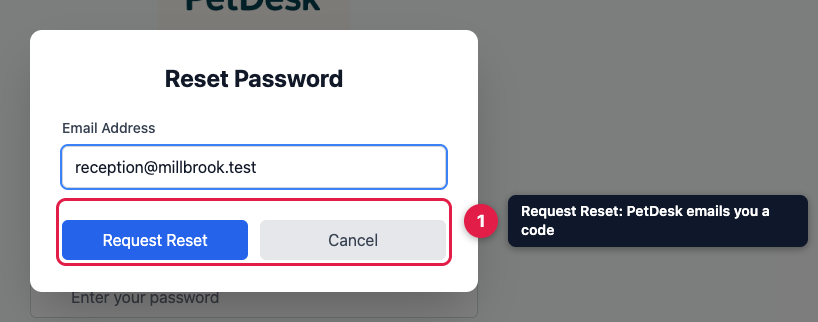
Enter your practice's email address and click Request Reset. PetDesk emails you a code, which works for 5 minutes. Type the code into the same window, choose a new password, type it again, and click Reset Password. You can request a new code once every 5 minutes.
No email? Check your spam folder. If still nothing arrives, ask the business that invited you to check the email address it has for your practice. A code only goes to an address that has been invited.