Mobile business: travel charges, warnings, mileage and the day map
This guide shows you how to:
- Charge for travel automatically, by distance
- Spot far addresses and tight gaps before you accept
- Log mileage and see the day on a map
Everything here needs Mobile business switched on, in Settings → Mobile Business. Mobile services, client addresses and directions work without it.
1. Switch it on and set your travel zones
Go to Settings → Mobile Business and turn on This is a mobile business. Under Travel zones, click Add a zone for each band of distance and give it a charge. For example: up to 5 miles £0.00, so it's included in your price; up to 10 miles £7.50; up to 15 miles £12.00. Then click Save Settings.
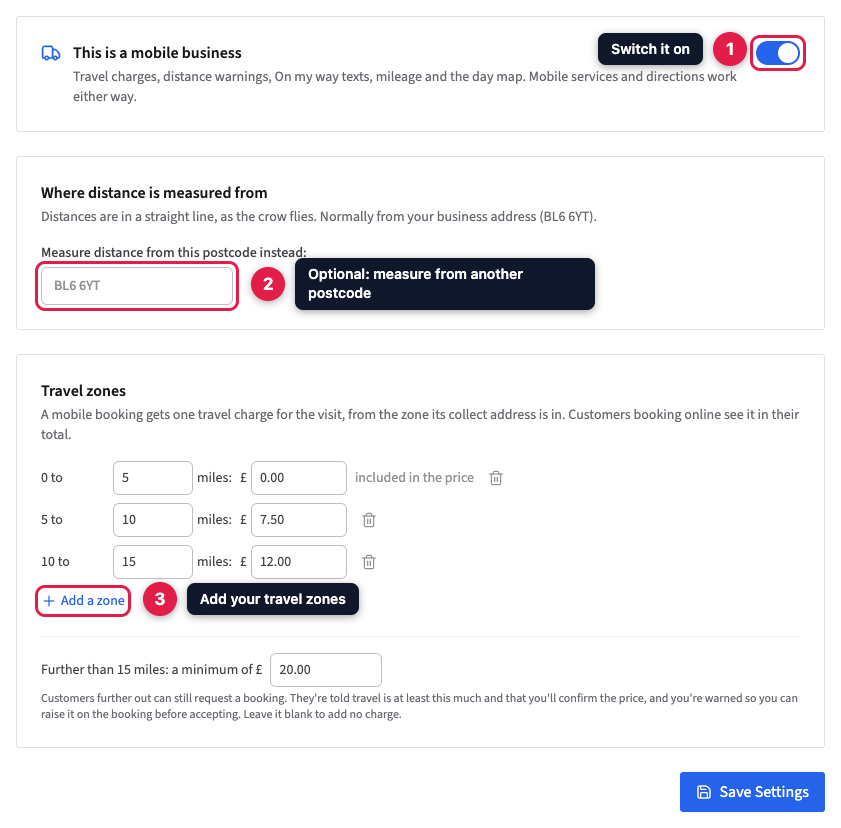
Distance is measured in a straight line, as the crow flies, from the postcode in your business address to the postcode in the client's address. If you start your rounds somewhere else, type that postcode in Measure distance from this postcode instead.
Customers further away than your last zone can still request a booking. In Further than 15 miles: a minimum of £, set what travel costs out there at least, say £20. Customers are told travel is a minimum of £20 and that you'll confirm the price, and you're warned so you can raise it on the booking before accepting. Leave it blank to add no charge; you're still warned.
2. The travel charge goes on automatically
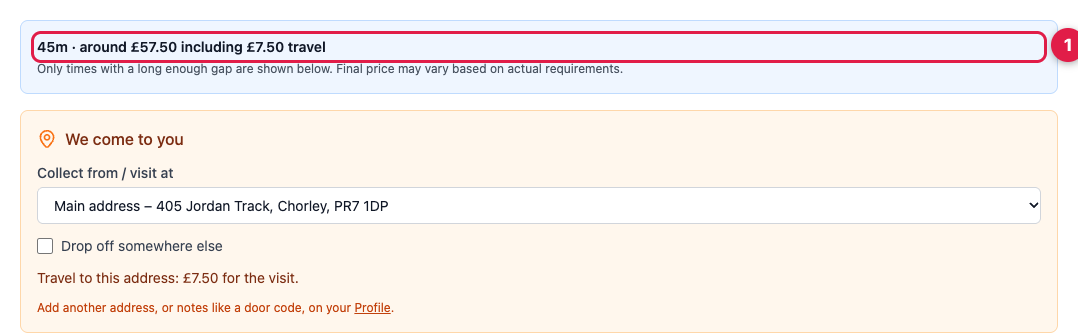
When you or a customer book a mobile service, PetDesk adds one Travel line to the booking, priced from the zone the collect address is in. A visit with several pets gets one travel charge, not one per pet. It counts towards the deposit like the rest of the price.
Customers booking online see the travel in their total before they send the request. If their address is outside your zones, they're told it's outside your usual area, with your minimum charge if you set one, and they can still send it.
The travel line is an ordinary item on the booking, so you can change its price or delete it. If you change the booking's collect address, PetDesk works the travel out again and replaces it. Rescheduling doesn't change it, and Copy Booking copies it.
3. Warnings before you accept or set off
Mobile bookings show warnings when something needs a second look. They appear on the booking form, on new requests on the Dashboard, and on the booking's page. None of them stops you booking.
- The address is outside your travel zones.
- PetDesk can't find a postcode in the address, so there's no travel charge. Add the postcode to the client's address.
- The drop-off is further away than the collect address, so you may want to charge more.
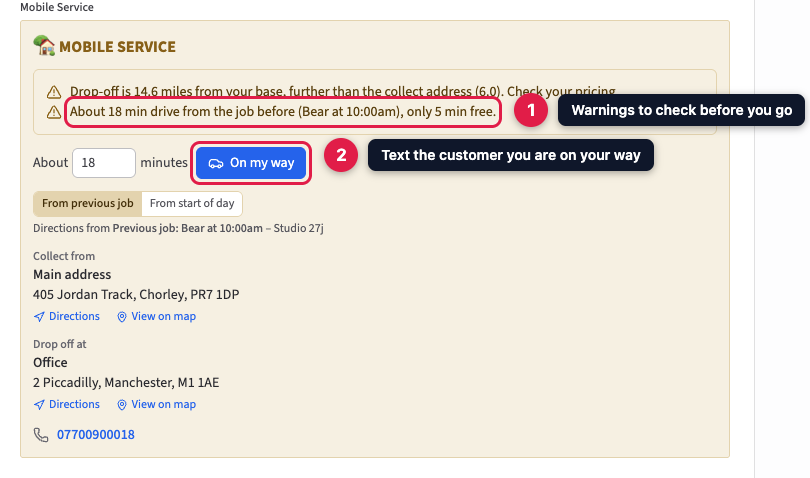
- There isn't time to drive from the staff member's job before, or on to their next one. PetDesk allows about 3 minutes a mile.
4. Tell the customer you're on your way
On a mobile booking's page, check the minutes and click On my way. The customer gets a text saying you're on the way and roughly how long you'll be, with your first name. The minutes start at the drive from your job before. A visit with several pets gets one message, and PetDesk won't send another for the same visit within 10 minutes. Customers who have opted out of texts aren't sent one.
5. Log the miles you drive
Click Mileage in the menu. Each person records the miles they actually drove for work that day, diversions included, with a note if it helps. Saving the same day again changes it.
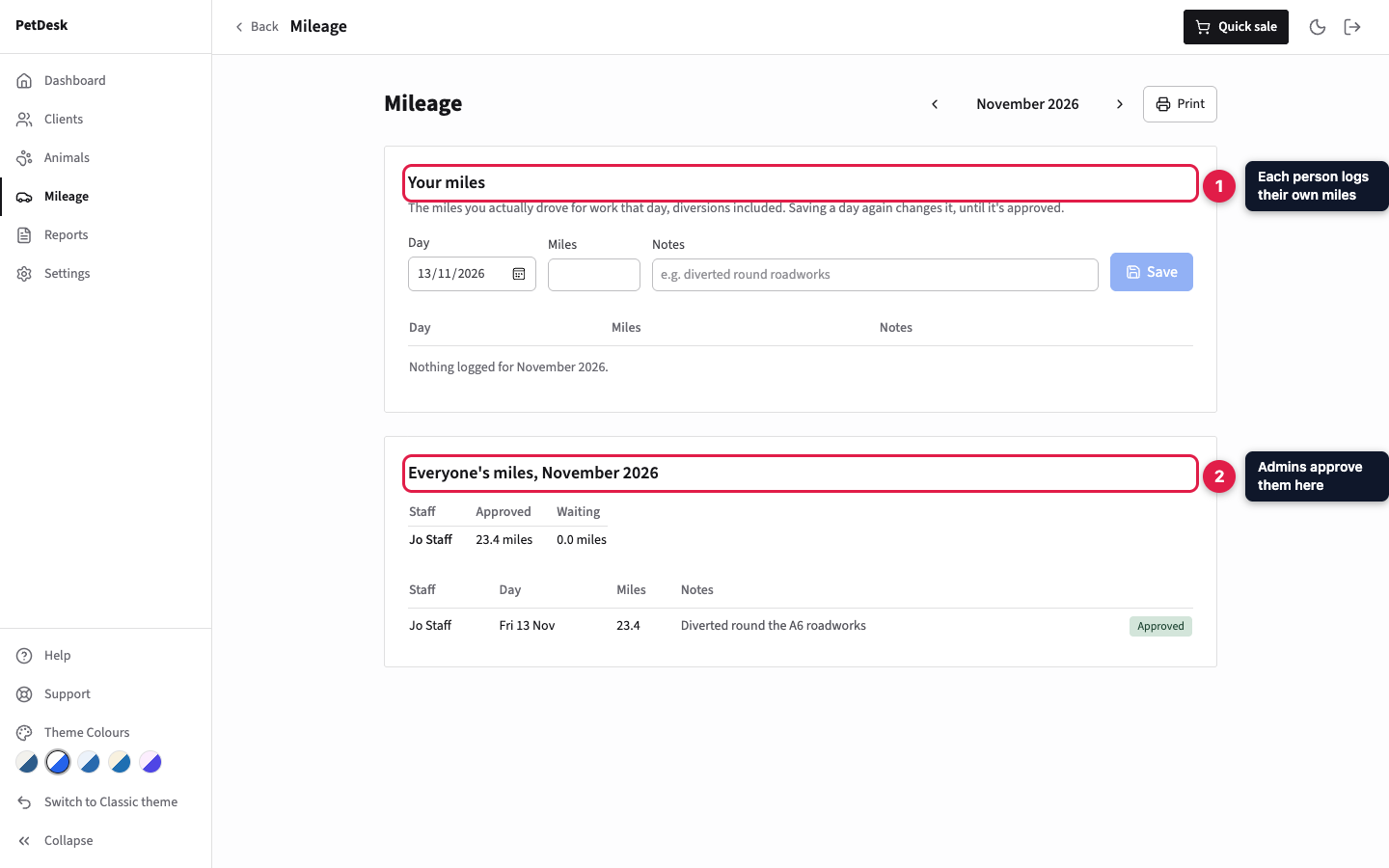
Administrators also see everyone's miles for the month, with each person's approved and waiting totals. Click Approve, or Reject and give a reason that the staff member sees. An approved day can't be changed; a rejected one can be corrected and goes back for approval. Click Print for a copy, for paying mileage or your accounts.
6. See the day on a map
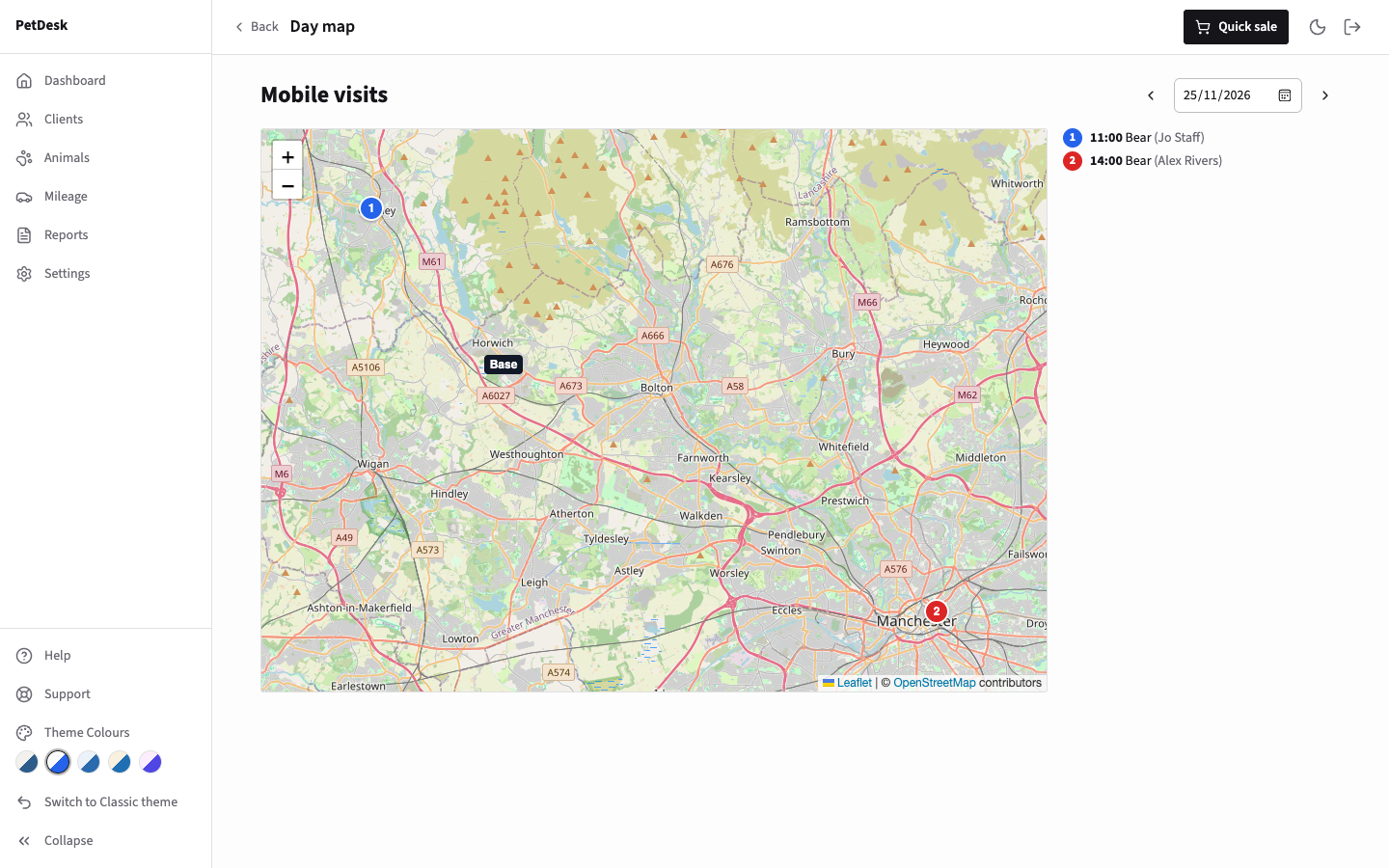
On the Dashboard's diary, click the map button next to the block-out button. The day's confirmed mobile visits appear as numbered pins in time order, each staff member in their own colour, with your base marked. Click a pin to open the booking. Visits PetDesk can't place are listed beside the map. Pick a staff member in the diary's staff filter first to see just their day.