Sending a vet a treatment report
On a booking, Quick Actions, then Generate Vet Report downloads a PDF of that appointment, with the animal, the service, date, staff member, notes and custom booking fields. On the animal's record, tick appointments in Appointment History and click Download Vet Reports for one PDF covering them all. PetDesk does not send it for you: attach it to an email to the practice. It needs the vet portal on and a paid plan.
Vets like to know how the animals they refer are getting on. With the vet portal on, PetDesk turns any appointment into a one-page PDF report you can send to the animal's vet. It needs a paid plan.
A report for one appointment
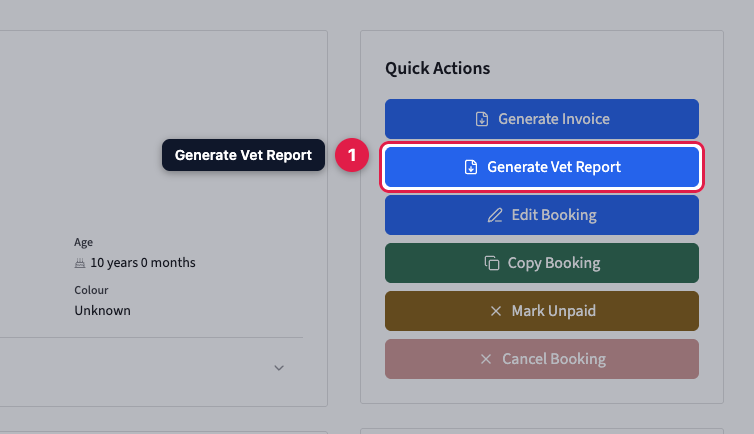
Open the booking and click Generate Vet Report under Quick Actions. The PDF downloads straight away. It carries your logo and contact details, the owner's details, the animal's name, species, breed and colour, and the service, date, time, length, staff member and status of the appointment. It also includes the appointment notes and any custom booking fields you've filled in, such as range of movement or exercises set.
Reports for several appointments at once
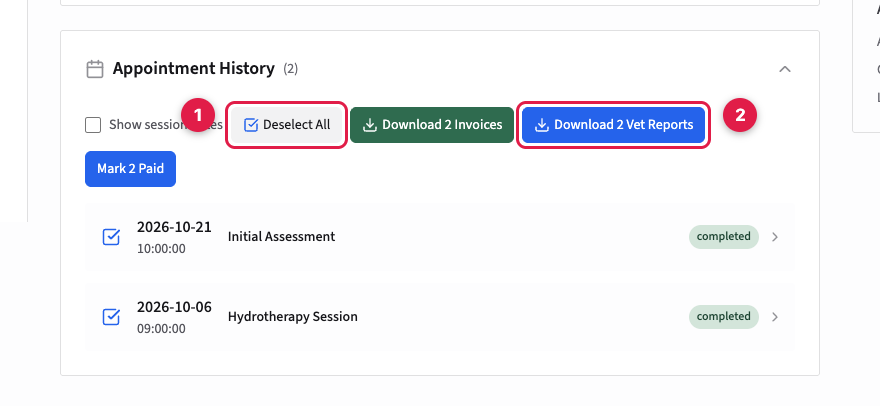
On the animal's record, open Appointment History. Tick the appointments you want, or click Select All, then click Download Vet Reports. You get one PDF with a report for each appointment, which suits a summary after a course of treatment.
Sending it
PetDesk doesn't email the report for you. Attach the PDF to an email to the practice. Its address is on the practice's entry in Settings, then Vet Management. The practice can also see the animal's appointment dates and notes at any time in its own vet portal.