
Changing an animal's details
An animal's record holds its details, appointment history, behaviour and general notes, custom fields and files. Edit Animal in Quick Actions changes the details; Transfer to Another Customer moves the animal and its history to a different owner. When an animal stops coming, set it to not active rather than deleting it so the history survives.
An animal's record is the single place everything about that pet lives — its details, its history with you, its notes and its files. Open it from the Animals list, or from any booking the animal appears on.
What's on the page
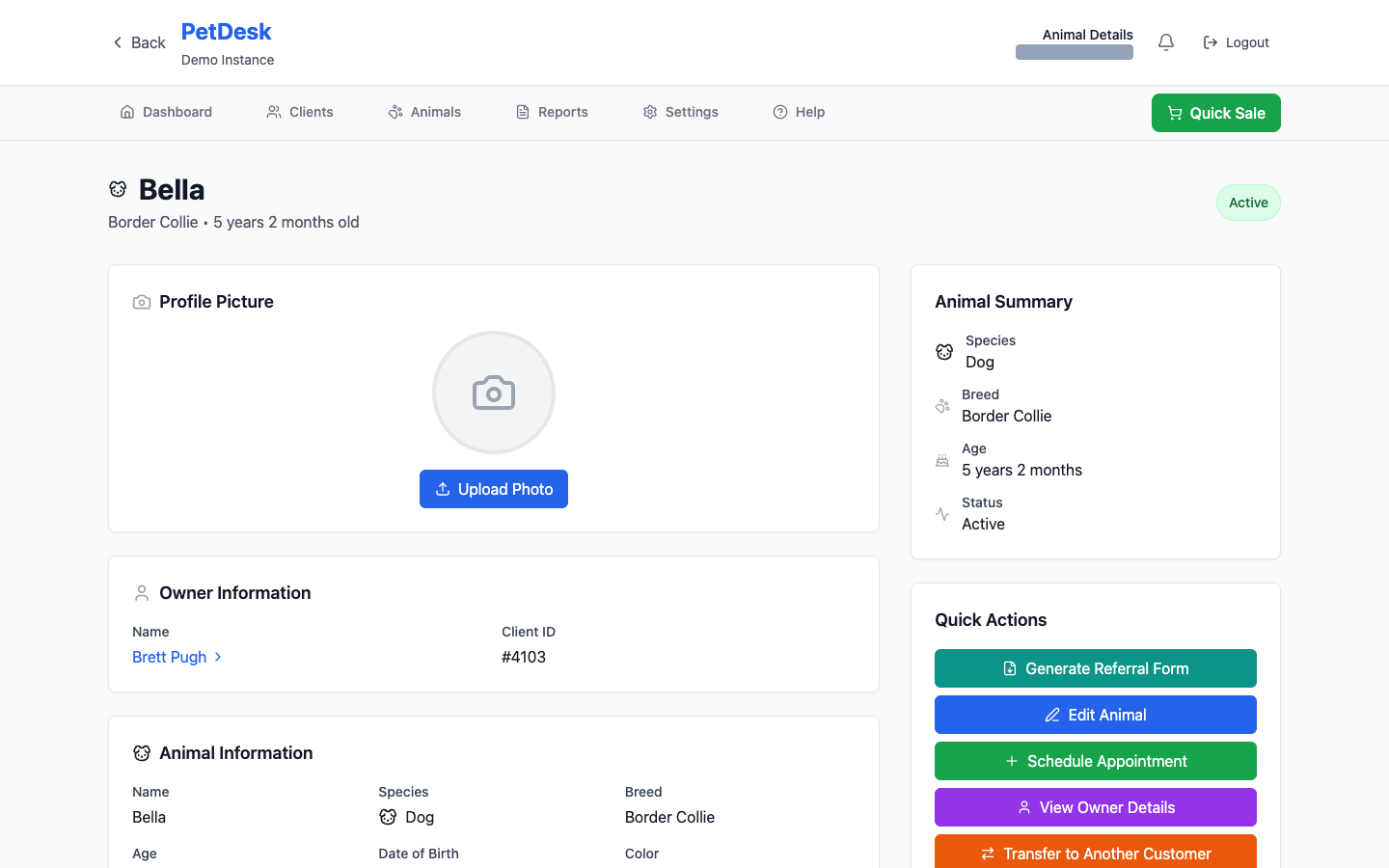
The name, breed and age sit at the top with an Active badge. Down the left are the animal's own details; down the right is a summary and a column of Quick Actions.
Changing the details
Click Edit Animal in Quick Actions. You get the same fields you filled in when the animal was added — name, date of birth, species, breed, colour, weight, gender and medical notes. Change what you need and save.
Adding a photo
Click Upload Photo. It's not required, but it earns its keep: a photo on the record is the quickest way for a member of staff to be sure they've got the right dog in front of them, especially when a customer has three and they're all called something beginning with B.
The rest of the record
Scroll down and you'll find, in order:
- Appointment History — every booking this animal has ever had, most recent first.
- Behaviour Notes — how the animal is to handle. The field worth keeping honest and up to date.
- General Notes — anything else. There's a separate option for whether notes appear on invoices.
- Custom Fields — whatever extra questions you've set up for yourself.
- Files & Documents — vaccination cards, consent forms, anything you've been sent.
Moving an animal to a different owner
Transfer to Another Customer in Quick Actions. Use it when a pet genuinely changes hands, or when it was added under the wrong customer in the first place. The animal's history goes with it, which is the point — you don't lose what you've already recorded.
This is much better than deleting the animal and adding it again. Deleting loses the appointment history.
When an animal stops coming
Set it to not active rather than deleting it. It drops out of your day-to-day lists but the record and its history stay put, which matters if the owner comes back or you need to look something up. Deleting is for a record created by mistake.