
Blocking out time in the diary
Block out time puts a gap in the diary that nobody can book into — lunch, a delivery, an hour off. Use the crossed-out calendar button above the diary, or click any empty square in Staff view. You choose the length, whether it applies to one staff member or the whole business, and whether it repeats every week.
Sometimes you just need an hour to yourself — lunch, a delivery, a vet appointment of your own. Block out time puts a gap in the diary that nobody can book into. It takes about ten seconds and you can do it on the day, for yourself or for everyone.
Shut for a whole day? That's a closure rather than a block — use Settings → Business Closures for bank holidays, training days and the Christmas break.
1. Open it from the diary
On the dashboard calendar, click the crossed-out calendar icon in the row of buttons above the diary. It sits just to the right of the five view buttons. The window opens on whichever day you're looking at, starting at midday.

2. Or click the slot you want
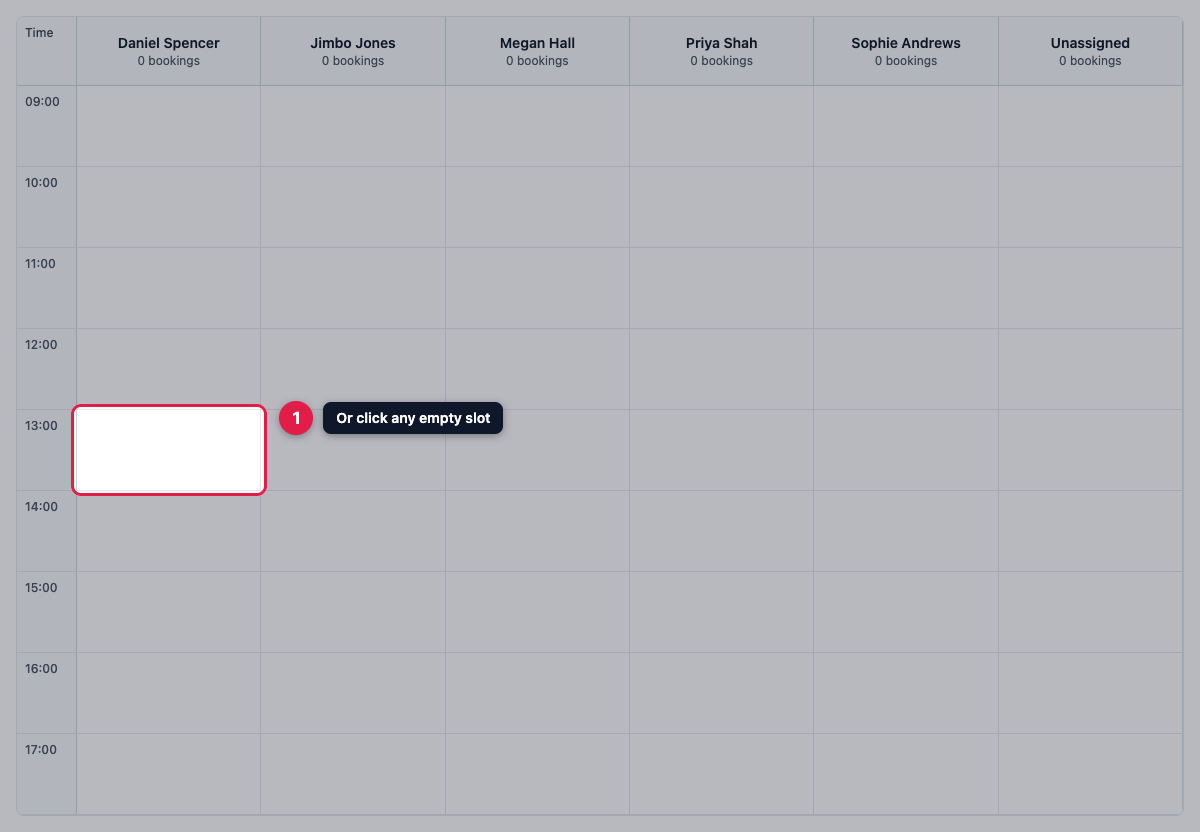
In Staff view, clicking any empty square blocks out that hour for that person. It's the quickest way in: the day, the time and the staff member are all filled in for you, and you only have to check the length.
3. Say what it is and how long for
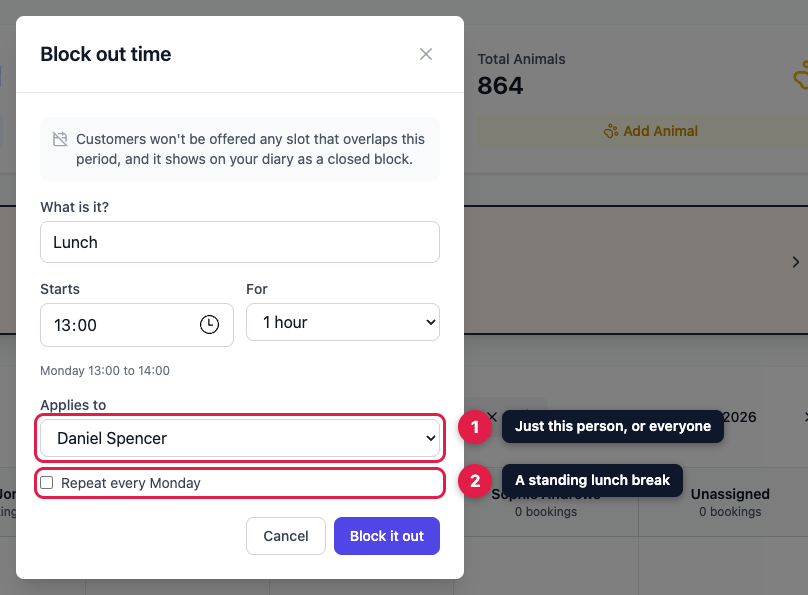
Give it a name — it defaults to Lunch, but “Dentist” or “Stock delivery” works just as well, and it's what your team will see on the diary. Set the start time and pick a length between fifteen minutes and two hours. The grey line underneath spells out what you're about to block, so you can check it before saving.
4. Who it applies to
Applies to decides who loses the time. Pick a staff member and only their diary is blocked — everyone else carries on taking appointments, which is what you want for one person's lunch. Pick The whole business and nothing can be booked with anyone during that window.
5. Every week, if you like
Tick Repeat every Monday (or whichever day you're on) and the same gap comes back at the same time every week, without you setting it up again. Leave it unticked for a one-off. Then click Block it out.
6. What it looks like afterwards
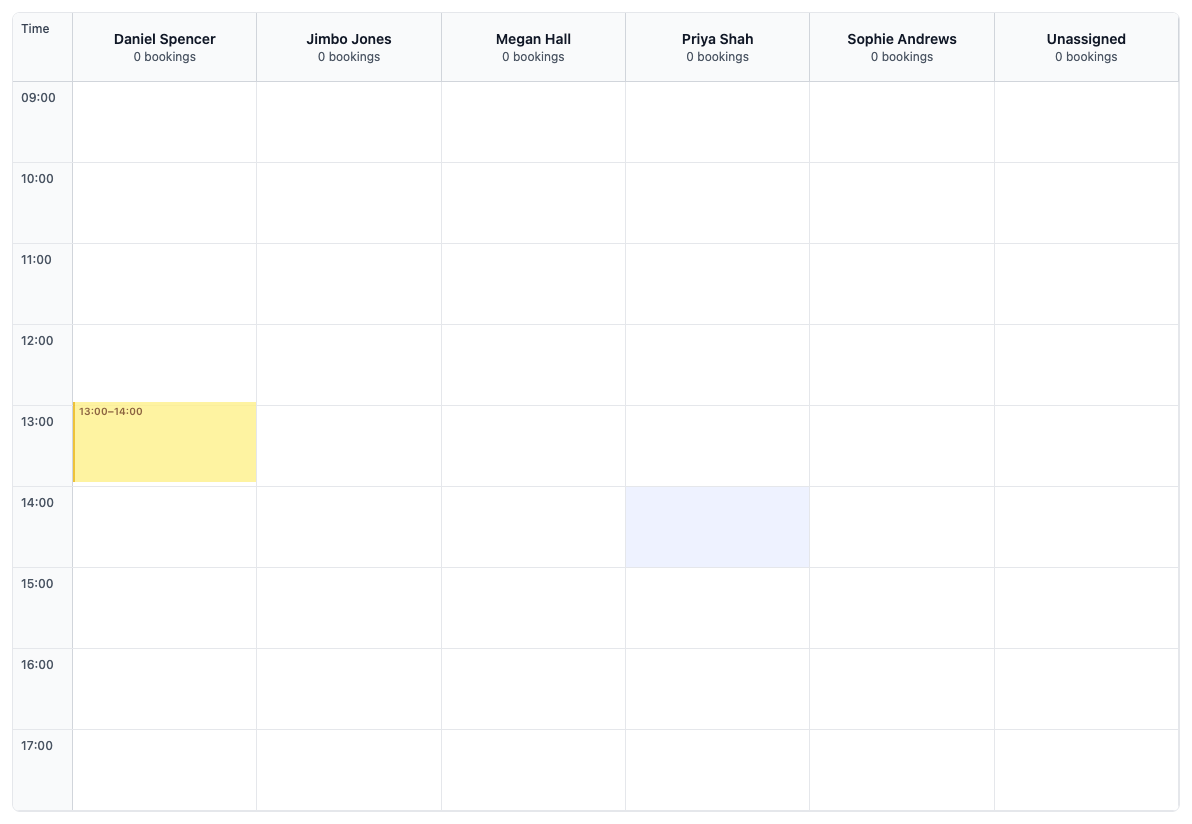
The blocked period shows as a yellow band on the diary, in that staff member's column in Staff view and across the day in Day view, labelled with the time and the name you gave it. Customers booking online are never offered a slot that overlaps it — including a longer appointment that would run into it — and it doesn't count as being closed, so the rest of the day books as normal.
7. Changing or removing one
Everything you block out is listed under Settings → Business Closures, alongside your ordinary closures and showing the hours affected. Anything set for one person carries a badge with their name, so you can tell it apart from a closure that shuts the whole business. Use the pencil to change one, or the bin to remove it — that's also how you stop a weekly block from coming back.
Fixed lunch hours every week? If you shut at the same time every day, it's tidier to set it once in Settings → Business Profile by giving each day two time ranges — say 09:00 to 13:00 and 14:00 to 17:30. Blocking out time is for the days that don't go to plan.