Completing a booking
Marking a booking complete is how it becomes a sale. Open the appointment, confirm what was actually done, take payment, and the booking closes and feeds into your reports.
The appointment's done. Here's how to add anything extra the customer bought, settle up, and close the booking off.
1. Open the booking
Find it on your calendar and scroll to Booking Items & Total. The service is already listed at its booked price.
2. Add anything else they bought
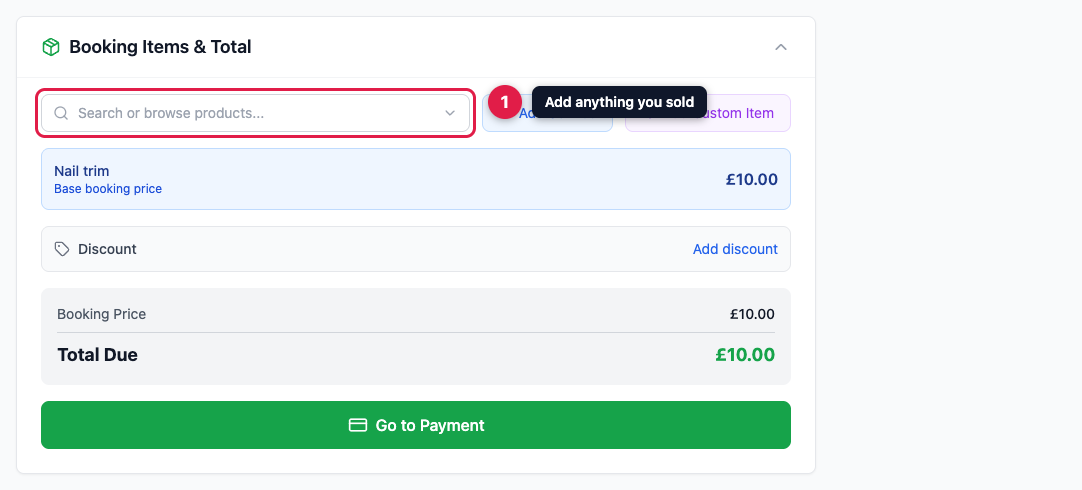
Search your products to add a stocked item, or use Add Custom Item for a one-off that isn't in your list. Type a name and price, then click the + to add it.
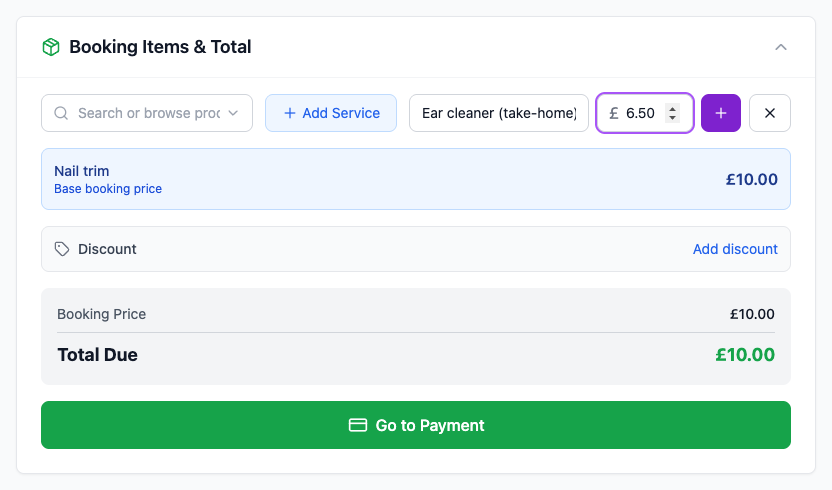
You can also add a second service, or apply a discount to the whole booking.
3. Check the total
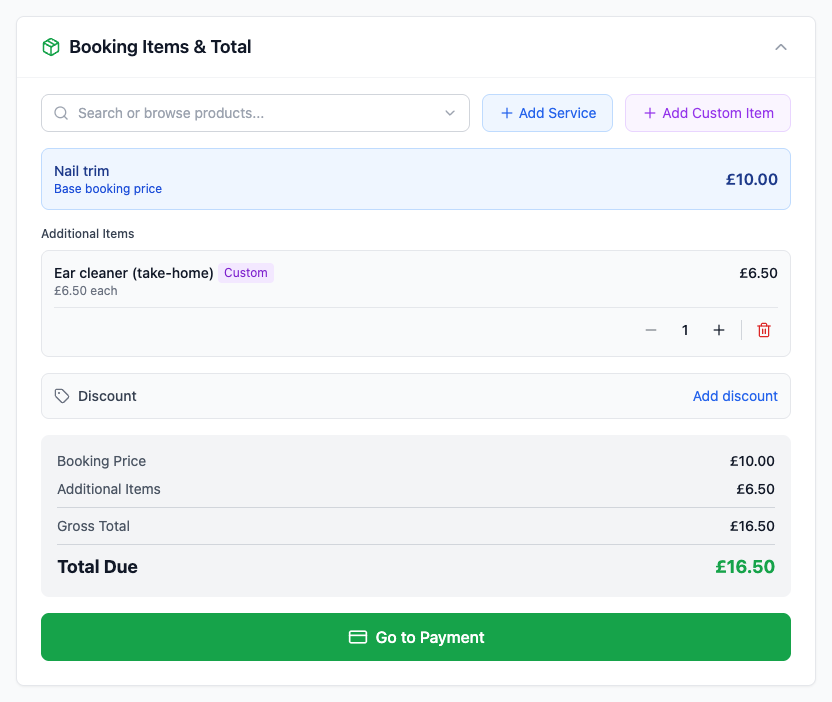
The total updates as you go, splitting out the booking price from any extras.
4. Settle up
Click Mark Complete (Paid) in Quick Actions. If you'd rather take a card payment through PetDesk, use Go to Payment at the bottom of the items panel instead.
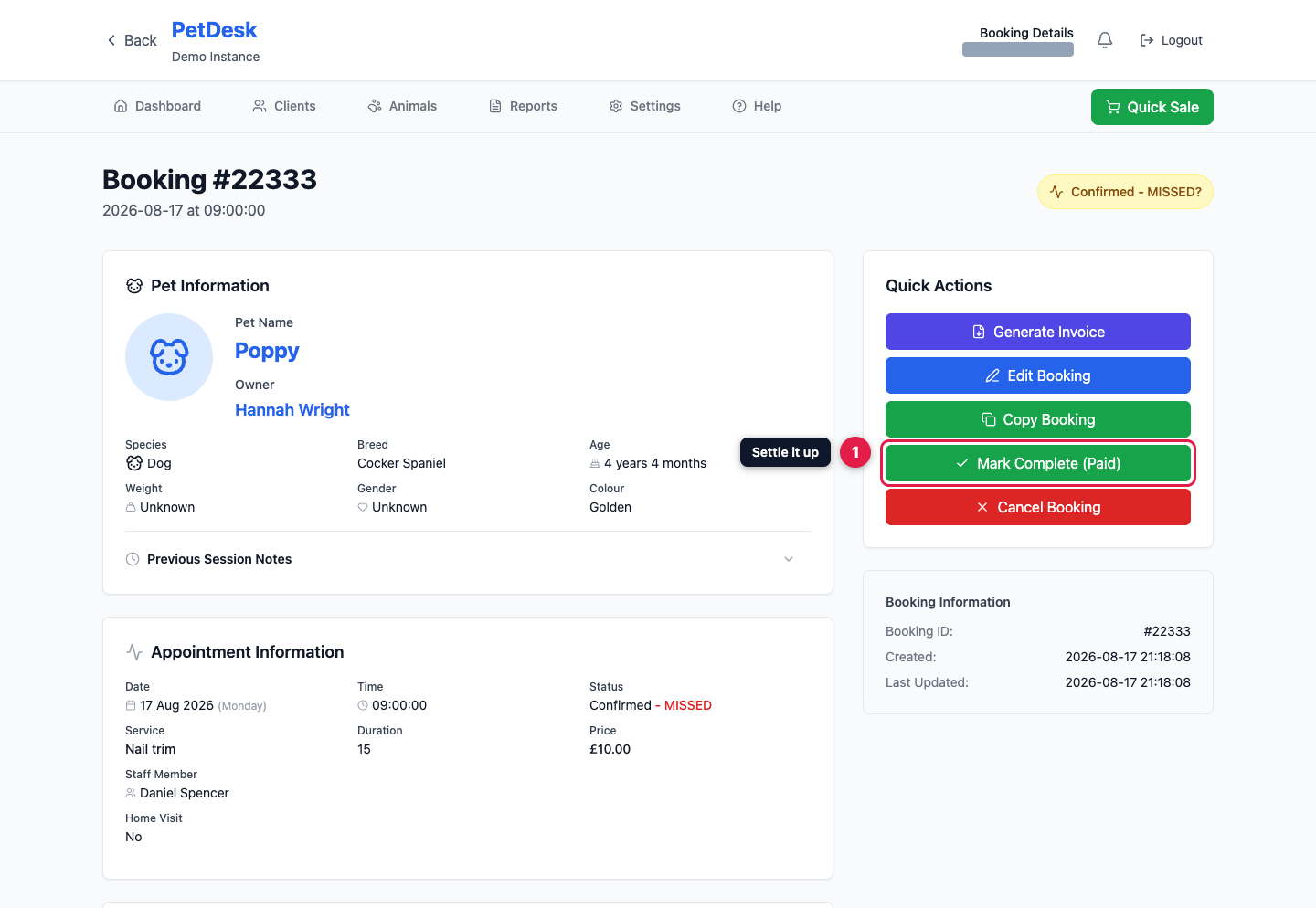
5. Record how they paid
Choose cash, card, bank transfer, or prepayment if they'd already paid in advance. This is what your takings reports are built from, so it's worth getting right.
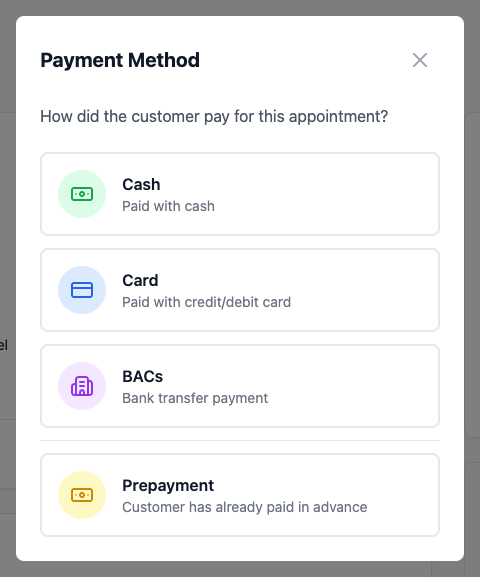
6. Done
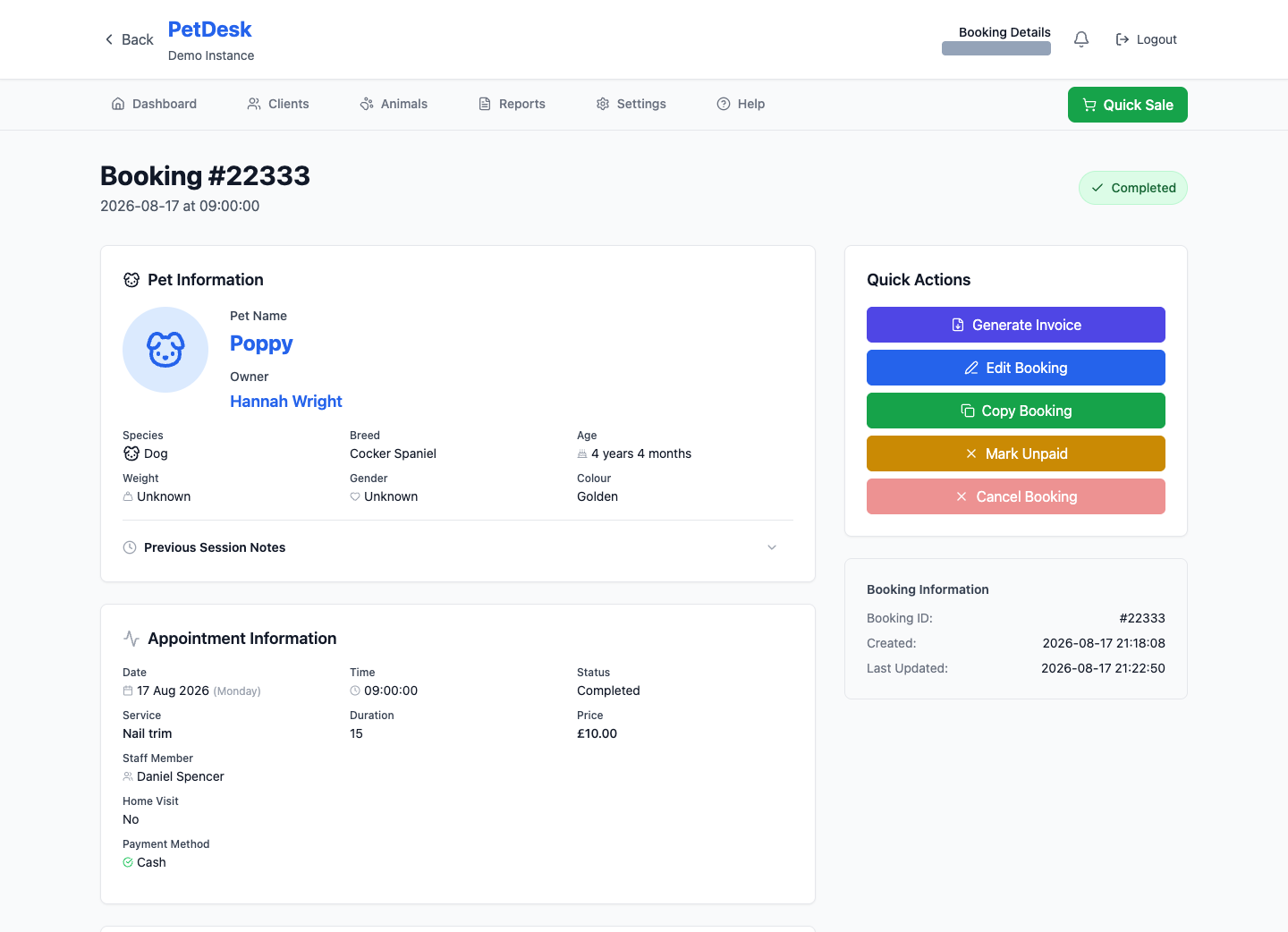
The booking is marked Completed with the payment method recorded against it. Need to undo it? Mark Unpaid puts it back. Generate Invoice produces a PDF for the customer.
Completing a visit with several pets
Payment and completion cover every animal on the visit by default — one owner, one payment, one lot of paperwork. If someone wants to settle for just one pet, switch Payment and completion apply to at the top of the booking from the whole visit to that animal. All of this happens on the first pet of the visit, the one marked · bill; the others point you back to it.