Your business details, hours and logo
Settings then Business Profile holds your name, contact details, logo, opening hours and terms. Your business hours decide which slots exist in the diary and online, and you can give a day two time ranges to handle a lunch break. Nothing saves until you click Save at the bottom.
Your business details aren't just for your own records — they build your public website, appear on what customers receive, and decide which appointment times exist at all. Go to Settings and choose Business Profile.
1. Basic information
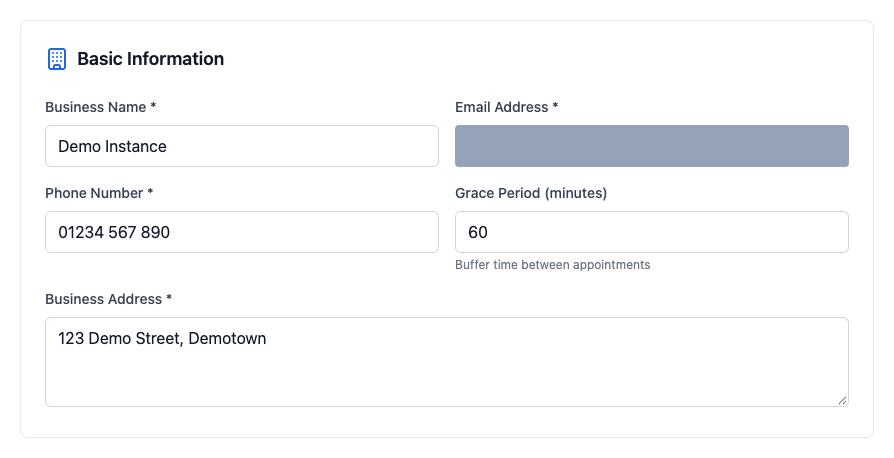
Your name, email address, phone number and address. Everything marked with an asterisk is required. These appear on your website and are how customers get hold of you, so use the details you actually want people to use rather than a personal mobile.
What Grace Period actually does
It's the buffer, in minutes, left after each appointment when customers book themselves in online. Set it to 15 and the portal won't offer anyone a slot that starts inside a quarter of an hour of an existing appointment finishing — useful if you need time to clean down, write notes, or simply get a cup of tea.
It only applies to online bookings. When you make a booking yourself from the diary, PetDesk assumes you know what you're doing and lets you book back to back.
2. Your logo
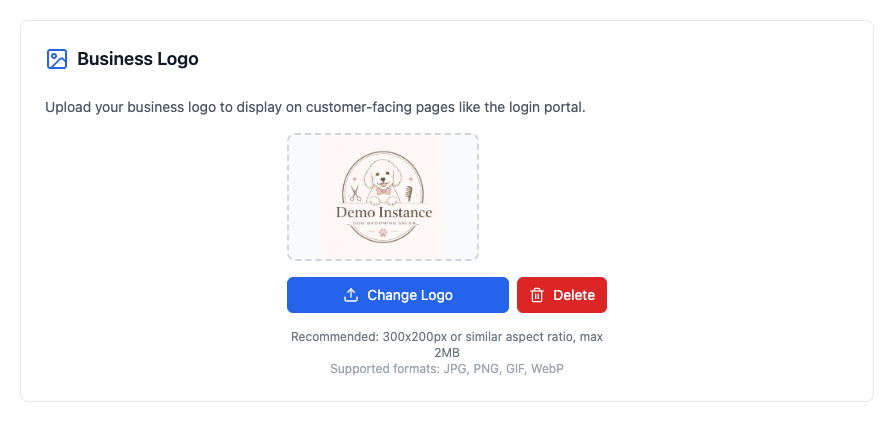
Upload one here and it appears at the top of your public website. A square or wide image both work. If you don't upload anything, the site simply shows your business name instead — it won't look broken.
3. Business hours
Set the times you're open, one day at a time. This is what decides which slots appear in your diary and what customers can pick online, so it's the setting most worth getting right.
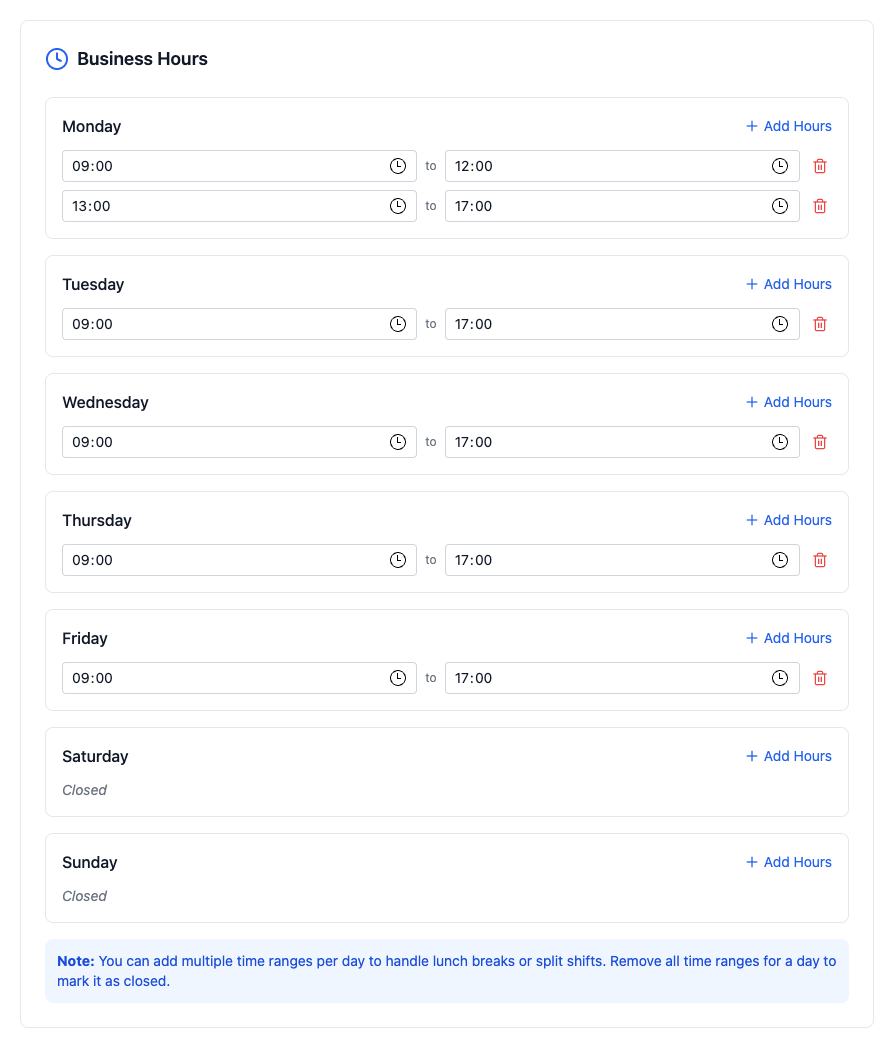
- Add Hours gives a day a second time range — that's how you handle a lunch break or a split shift. Monday above is open 9–12 and again 1–5.
- To mark a day as closed, delete all of its time ranges with the red bin icon. It then shows as Closed.
Not lucky enough to have set lunch hours? Plenty of people take lunch when they can get it rather than at the same time every day. You don't have to put it here at all — you can book lunch as you go with the Block out time button on the diary, which blocks an hour on the day and keeps customers out of it.
These are your normal weekly hours. One-off closures — bank holidays, a training day, the week you're away — are separate, under Settings then Business Closures.
4. Animal age settings
By default PetDesk asks for an animal's date of birth. Switch on simple ages and it asks for an approximate age in years and months instead. Worth doing if most of your customers are rescues or genuinely don't know — you stop chasing a date nobody has. Either way the record stores the same thing underneath, so you can change your mind later without losing anything.
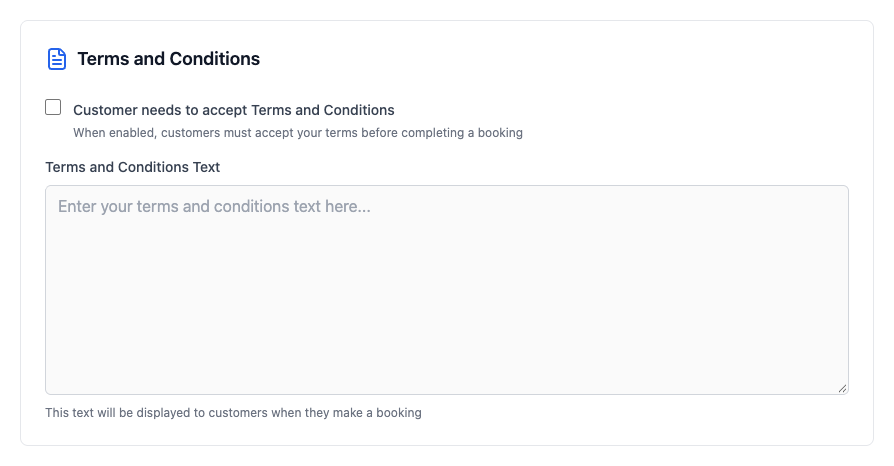
5. Terms and conditions
Switch this on and type your terms into the box. Customers are then asked to accept them, and you can see who has and who hasn't. Leave it off and PetDesk never mentions terms at all.
6. Save
Nothing on this page takes effect until you click Save at the bottom. It saves the whole page at once, so you can work down it in one pass rather than saving each section.