Adding a service or appointment type
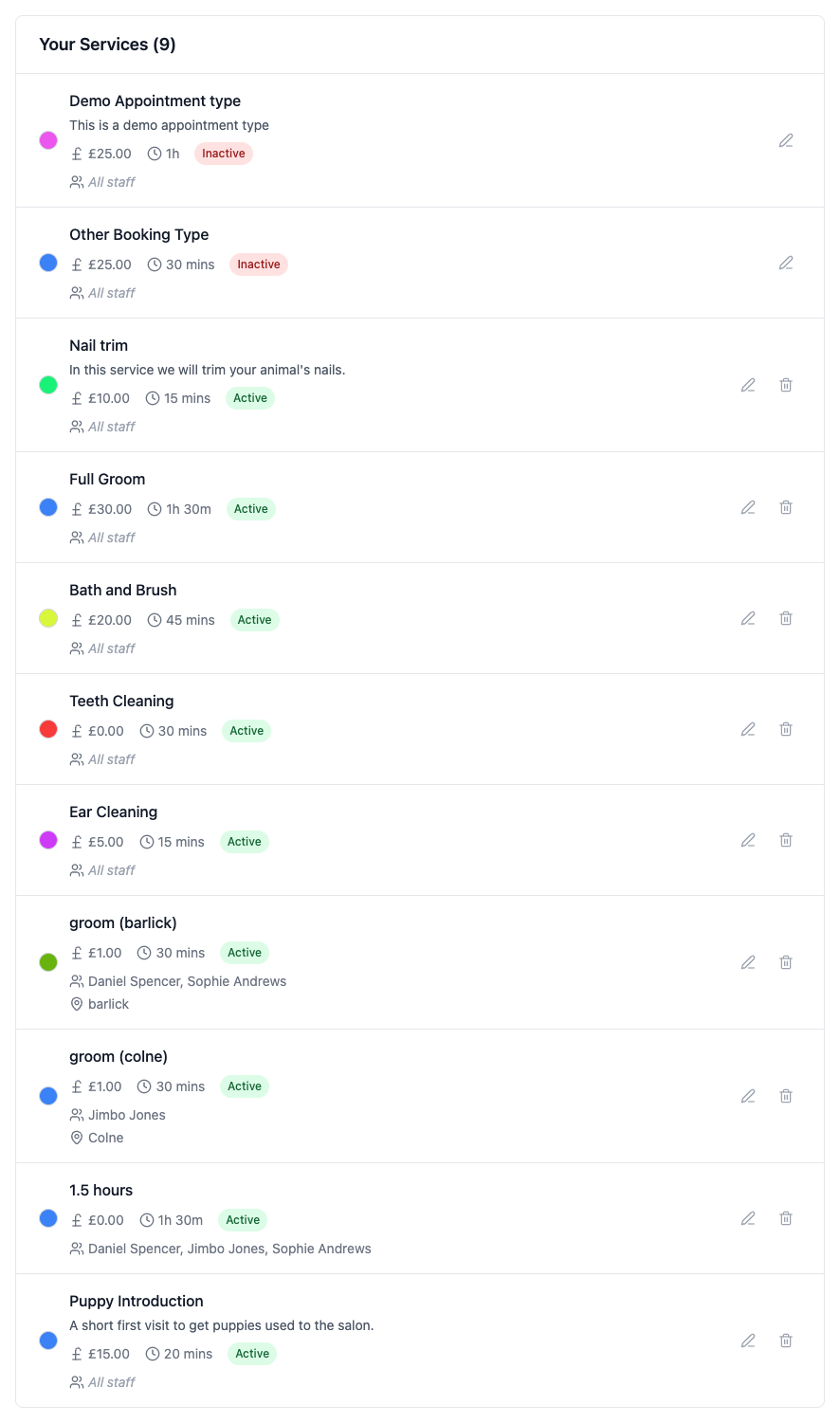
Services are the appointment types your customers can book — a nail clip, a full groom, a check-up. Add them under Settings, then Services, giving each one a name, how long it takes and what it costs. You can also mark a service as an extra, so it can be ticked on alongside a main booking at a lower combined price, and hide a service from the customer portal while still booking it yourself.
Services are the things you offer — a full groom, a nail trim, a consultation. Each one carries its own price and duration, which PetDesk fills in for you every time you book it.
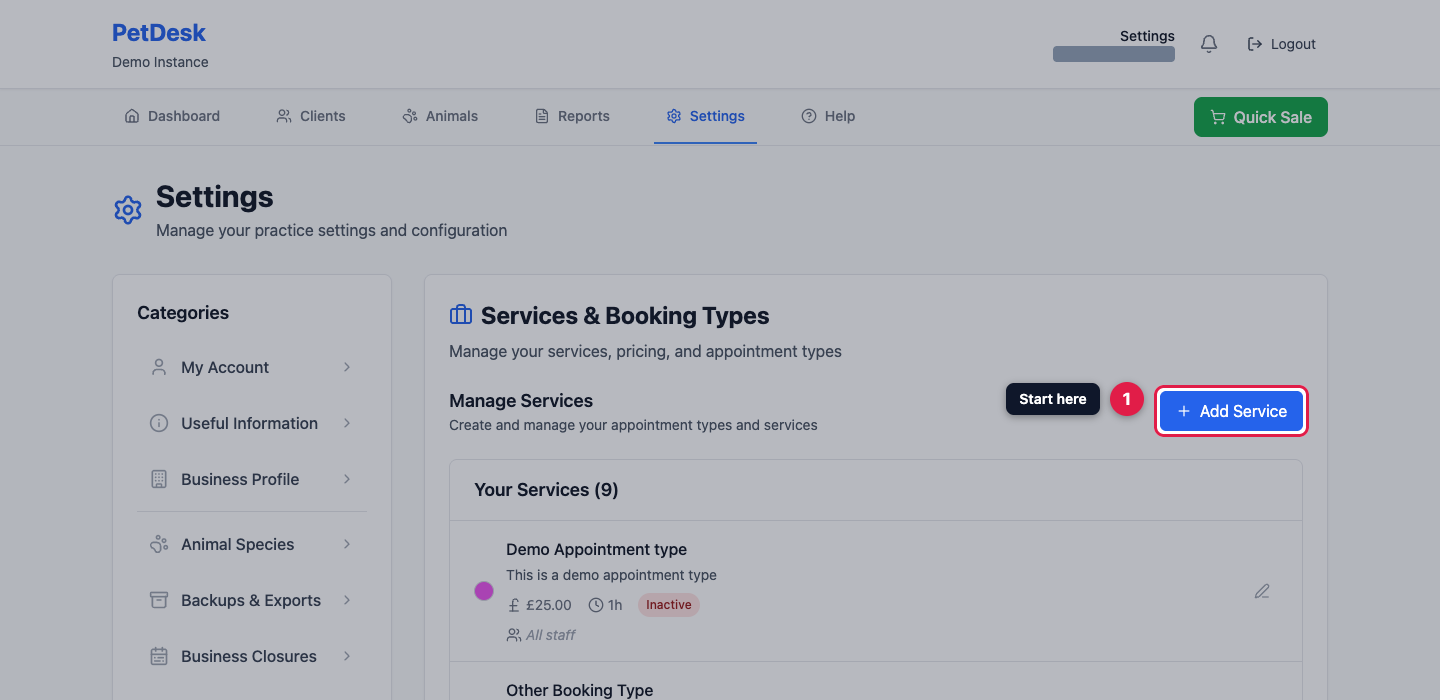
1. Open your services
Go to Settings and choose Services & Booking Types from the category list, then click Add Service.
2. Describe the service
Give it a name, a price and how long it takes. The colour is how it will appear on your calendar, which makes a busy day much easier to read at a glance. The description is shown to customers booking online.
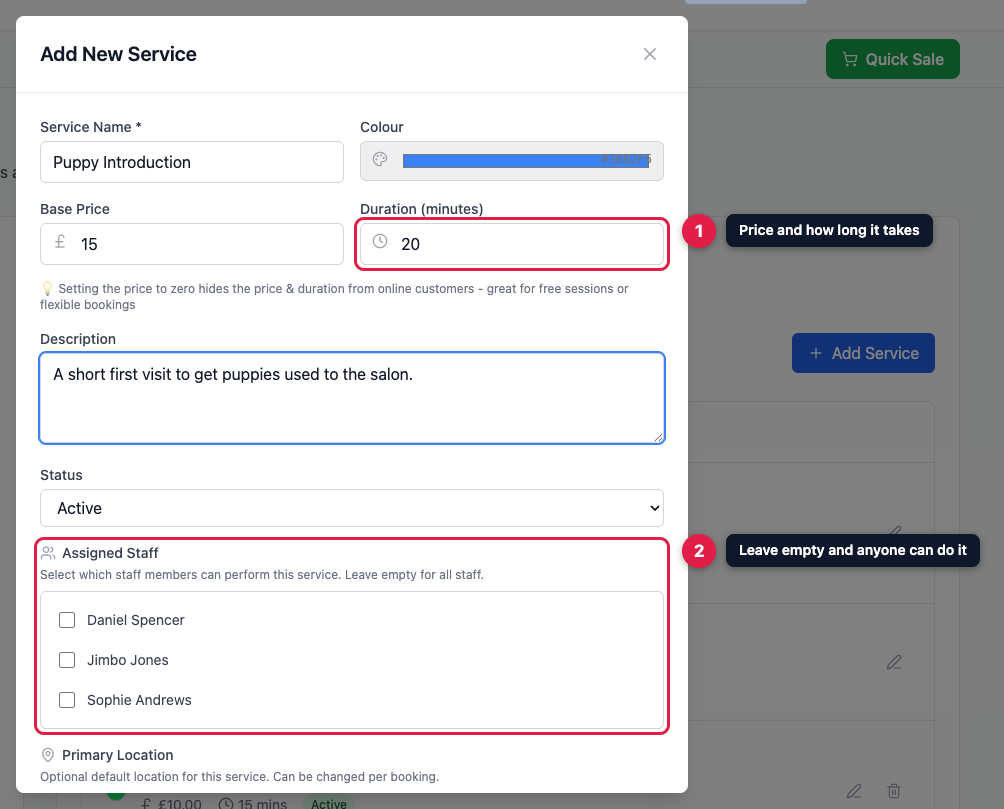
Setting the price to zero hides both price and duration from customers booking online — handy for free first consultations or anything where the length varies.
3. Who can do it, and where
Leave Assigned Staff empty and anyone can perform the service. Tick specific people and only they will be offered for it — useful when one groomer does hand-stripping and nobody else does. Primary Location sets a default if you work from more than one place, and can still be changed on individual bookings.
Set Status to Inactive to retire a service without deleting it. Existing bookings keep working, and customers stop being offered it online straight away. It stays in the list when you book from the diary yourself, so you can still put a regular in for something you've retired.
4. Should customers see it?
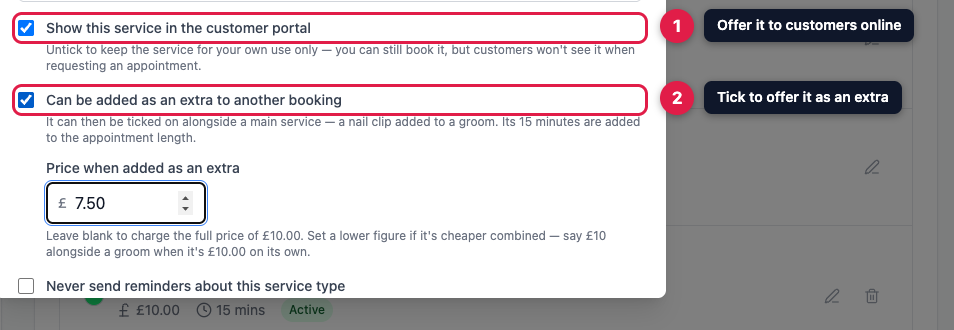
Show this service in the customer portal is ticked by default. Untick it to keep a service for your own use — you can still book it from the diary, but nobody sees it when they request an appointment online. It's the setting for anything you'd rather arrange yourself: a behavioural assessment, a difficult dog, a favour for a regular.
5. Offering it as an extra
Tick Can be added as an extra to another booking and the service can be ticked on alongside a main one — a nail trim added to a full groom. Extras appear as a list of tick boxes under the service when you make a booking, and customers see the same list when they book online. Its minutes are added to the appointment automatically, so a 90 minute groom with a 15 minute nail trim blocks out an hour and three quarters and stops being offered in any gap too short to hold it.
6. Charging less when it's combined
Ticking the box reveals Price when added as an extra. Plenty of things are worth less bolted onto an existing appointment than they are as a visit of their own — the animal is already on the table. A nail trim might be £10 booked by itself and £7.50 added to a groom. Fill in the lower figure and PetDesk charges that whenever it goes on as an extra, and the full price whenever it's booked on its own. Leave it blank and the extra costs the same either way.
7. Save it
Click Create Service and it joins your list, ready to pick when you make a booking. Use the pencil to edit one later, or the bin to remove it.