Connecting your SumUp account
Linking SumUp is what lets you take card payments through PetDesk — online deposits, portal payments and card readers all run through it. You connect it once from Payment Settings and log in with your existing SumUp details.
Card payments in PetDesk run through SumUp. Link your SumUp account once and you can take card payments at the counter, ask for a deposit when someone books, and let customers settle up from the customer portal. You'll need a SumUp merchant account first — if you haven't got one, set it up at sumup.com and come back when it's ready.
1. Open your payment settings
Go to Settings and choose Payment Settings from the list on the left. Everything to do with taking money lives on this one page.
2. Click Connect to SumUp
You'll be taken to SumUp's own website to sign in with your SumUp email and password, and they'll ask you to confirm that PetDesk can act on your account. Approve it and you'll be brought straight back here.
Your SumUp password never touches PetDesk
You type it on SumUp's site, not ours. What comes back to us is a key that lets us take payments on your behalf — and you can withdraw it at any time, either from here or from your SumUp account.
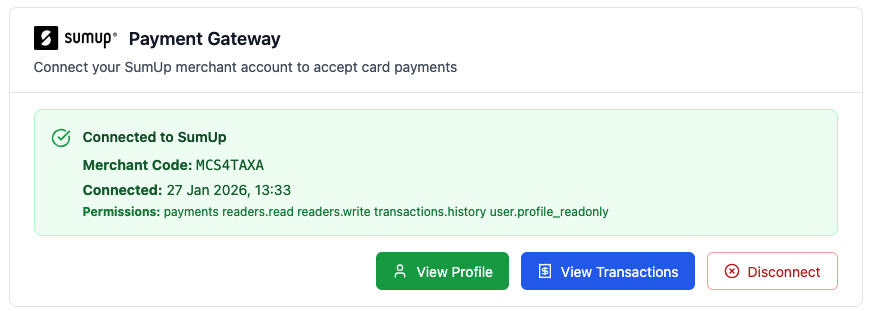
3. Check it's connected
A green panel replaces the Connect button. It shows your merchant code, the date you connected, and the list of things you've allowed PetDesk to do — take payments, look up your transaction history, read your business details, and manage your card readers.
4. What connecting turns on
Scroll down and you'll see Deposit & Online Payment Settings is no longer greyed out. That's where you decide whether bookings need a deposit and how much it should be. Until SumUp is connected there's nothing to take the money with, so the section stays locked. If you'd rather take deposits in cash or by bank transfer, Offline Deposits further down the same page works without SumUp.
5. Seeing what's gone through
View Transactions pulls your recent card payments straight out of SumUp — the last 90 days, up to 50 of them. Each line tells you what it was for, so a payment can be traced back to the sale or the booking it belongs to.
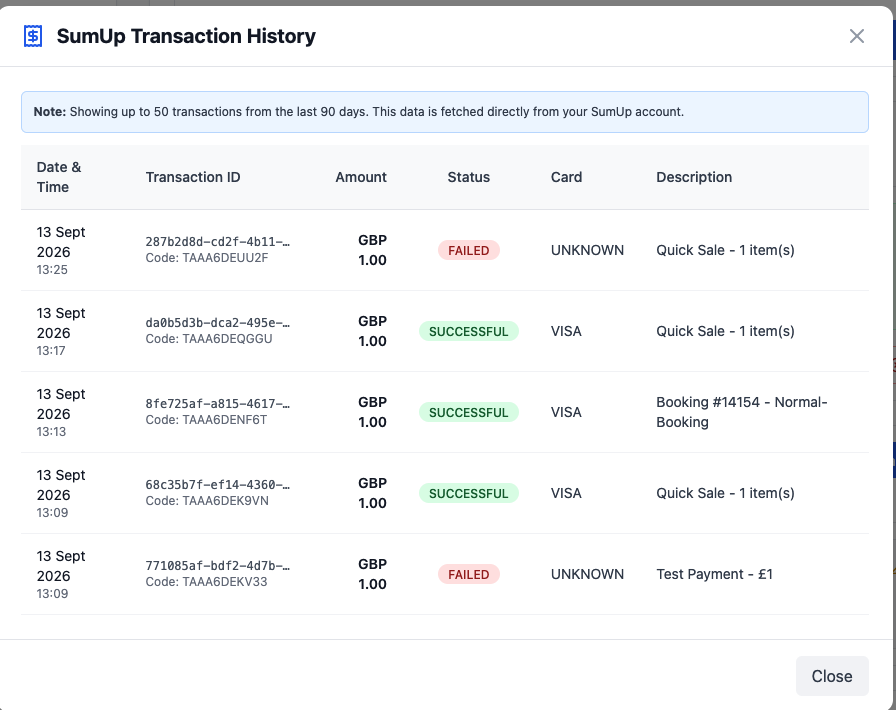
A failed line usually means a payment was started and then abandoned — the customer walked away, or the card was never presented. Nothing was taken.
6. SumUp's record and PetDesk's record
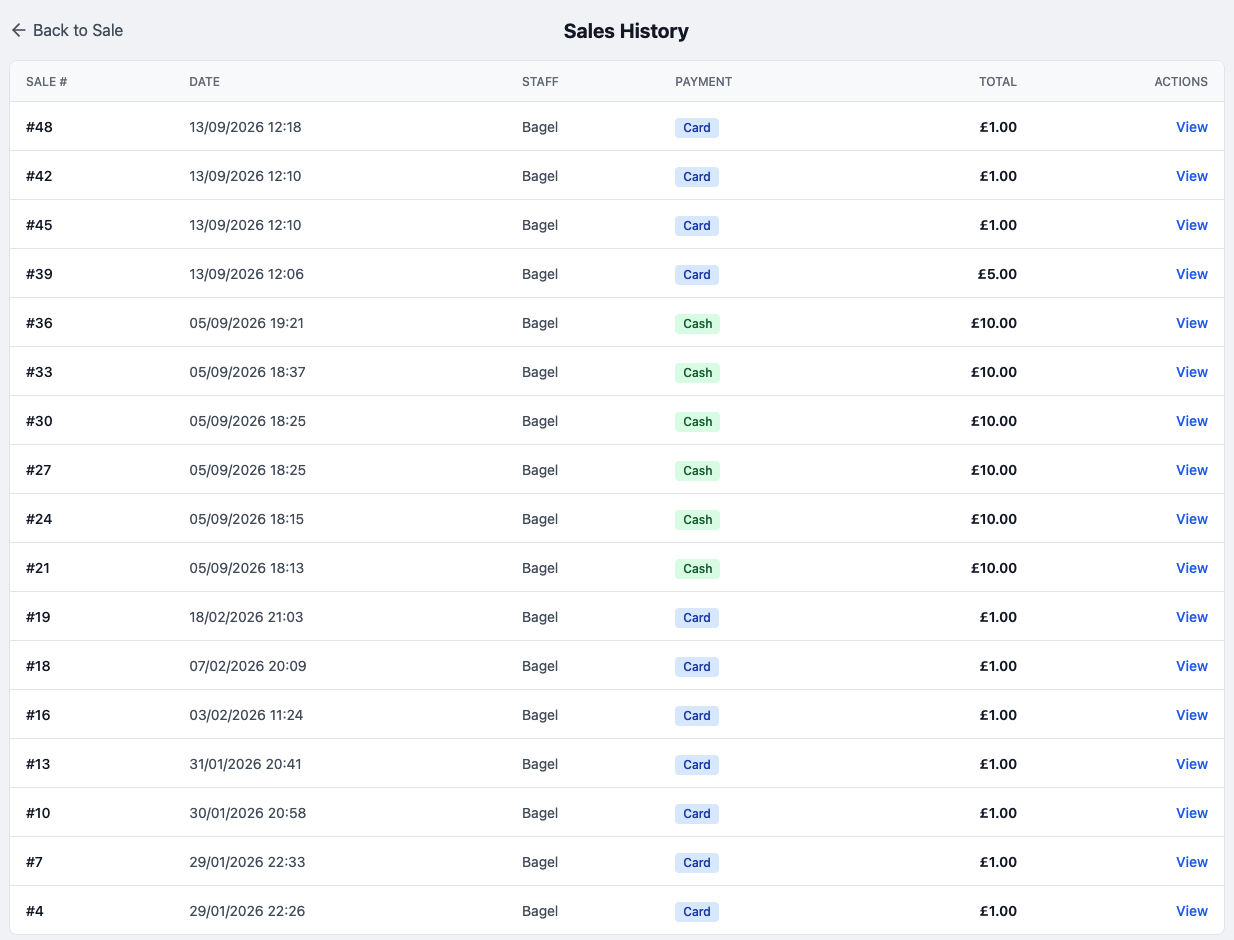
The window above is SumUp's view: card payments only. PetDesk keeps its own list of counter sales under Quick Sale → Sales History, which includes everything — cash, bank transfer and card alike — along with who served the customer. Use SumUp's list to check a card payment reached them, and Sales History for what you actually sold.
7. Your business details
View Profile shows the company details SumUp holds for you. It's there to check against — if something's wrong, change it in your SumUp account rather than here.
8. Disconnecting
Disconnect withdraws PetDesk's access. You'll be asked to confirm, because from that moment you can't take card payments, deposits stop working and any paired card reader goes with it. Nothing is deleted — your sales history and past payments all stay exactly where they are, and you can connect again whenever you like.
Got a SumUp Solo?
Now that your account is linked you can pair a card reader and take contactless payments at the counter without typing the amount in by hand. See Connecting Your SumUp Solo Card Reader below.