Connecting your SumUp Solo card reader
A SumUp Solo can be paired to PetDesk so totals are sent straight to it — no typing amounts in twice. Put the reader into Cloud API mode, generate a pairing code on the device, and enter it in Payment Settings within five minutes.
Pair a SumUp Solo with PetDesk and the reader stops being a separate machine. Ring a sale through, choose the reader, and the amount appears on its screen ready for the customer to tap — no keying the total in twice, and no wondering later whether the payment matched the sale.
Connect your SumUp account first
The card reader section only appears once your SumUp account is linked — see Connecting Your SumUp Account above. Only the SumUp Solo can be paired this way.
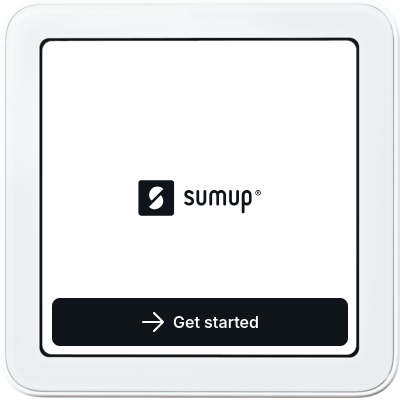
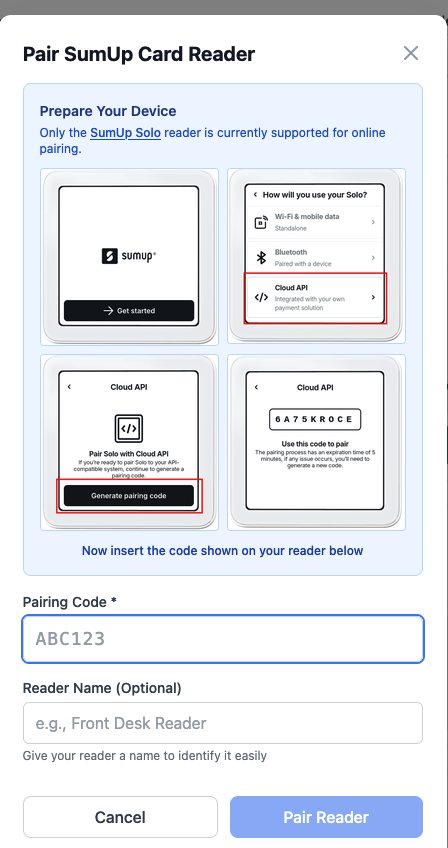
1. Wake the reader up and press Get started
Everything in this step happens on the reader itself, not on your computer.
2. Choose Cloud API
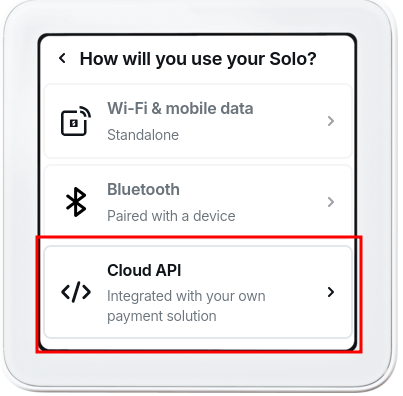
The reader asks how you'll be using it. Pick Cloud API — that's the option that lets another system send it payments. Don't choose Wi-Fi & mobile data or Bluetooth; those are for using the reader on its own.
3. Generate a pairing code
Press Generate pairing code and the reader displays six characters.
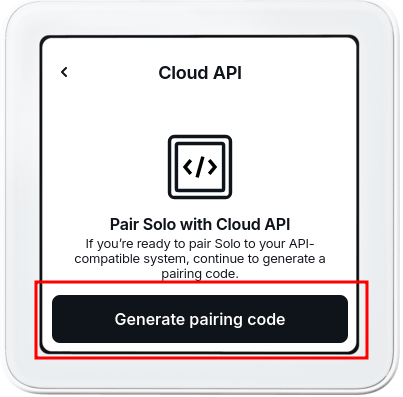
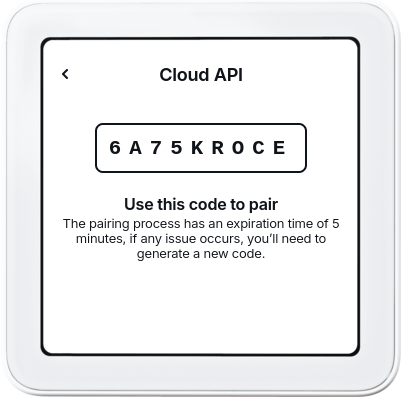
The code only lasts five minutes. Have PetDesk open and ready before you generate it. If it runs out, just generate another one.
4. Type the code into PetDesk
In Settings → Payment Settings, find SumUp Card Readers and click Pair New Reader. Enter the six characters from the reader's screen. Giving it a name is optional but worth doing if you'll ever have more than one — “Front Desk” is a lot easier to pick out than a serial number.
5. Your paired reader
The reader now appears in the list with a green Online badge, its serial number, when you paired it, and how much battery it has left. Four buttons sit on the right of the row:
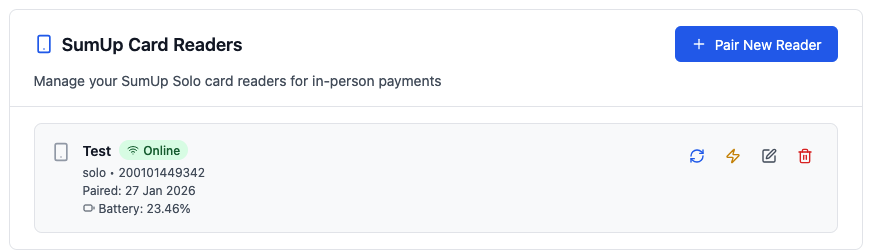
- Refresh — asks the reader how it's doing and updates the badge and battery.
- Test — sends a £1 payment to the reader so you can prove it works.
- Rename — change the name you gave it.
- Unpair — removes it from PetDesk.
6. Test it before you rely on it
Click the Test button and £1 appears on the reader. Tap a card and PetDesk tells you the payment succeeded, along with its transaction code. It's the quickest way to be sure a reader is genuinely ready before a customer is stood in front of you.
This is a real £1 charge
It goes through your SumUp account like any other payment. If you've used a customer's card rather than your own, refund it from your SumUp dashboard.
The Test button is greyed out while the reader shows as offline — there'd be nothing there to send the payment to.
7. Using it day to day
Once a reader is paired it turns up as a payment option wherever you take money — in Quick Sale and on a booking's payment window. Choose it, and the total is sent across for the customer to tap, insert or swipe. PetDesk waits for the reader to report back and marks the sale as paid by itself.
8. If it says Offline
A Solo drops off when it's asleep, out of battery, or off your Wi-Fi. Wake it, check it's connected, then press Refresh. If it still won't come back, unpair it and pair it again with a fresh code — nothing is lost by doing so.