
Your account and password
You can change your own password whenever you like without asking an administrator — it is under Settings, then My Account. If you cannot log in at all, use Forgot password on the login screen and we will email you a code that lasts five minutes.
Your password is yours to change whenever you like — you don't need to ask an administrator.
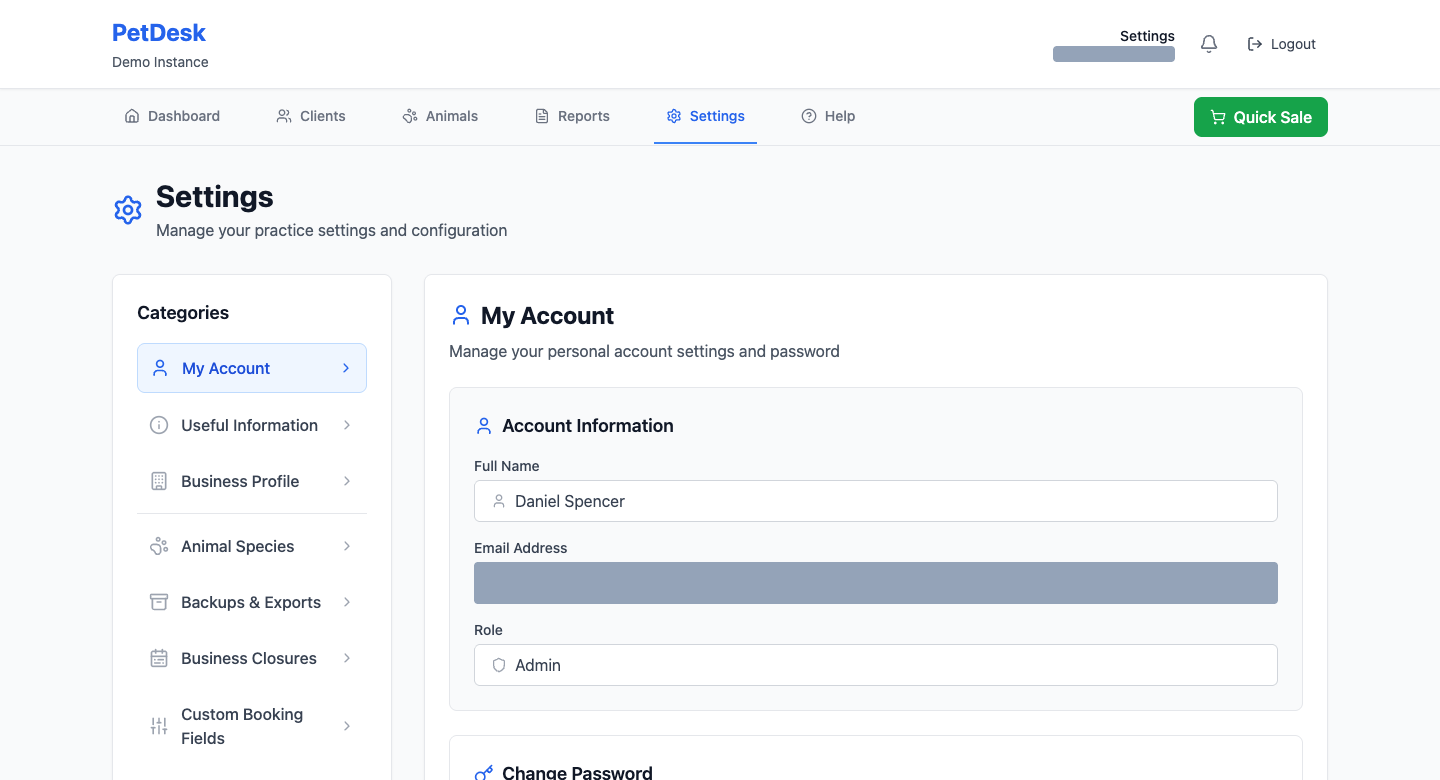
1. Open My Account
Go to Settings and choose My Account, the first item in the list. It shows your name, email and role, and below that the password box.
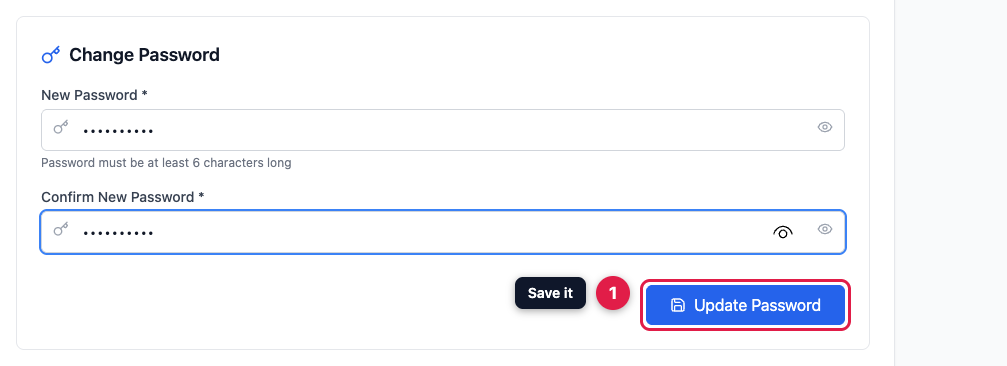
2. Enter a new password
Type it twice and click Update Password. It needs to be at least six characters. You aren't asked for your current password, so if you've stepped away from your desk, lock your screen.
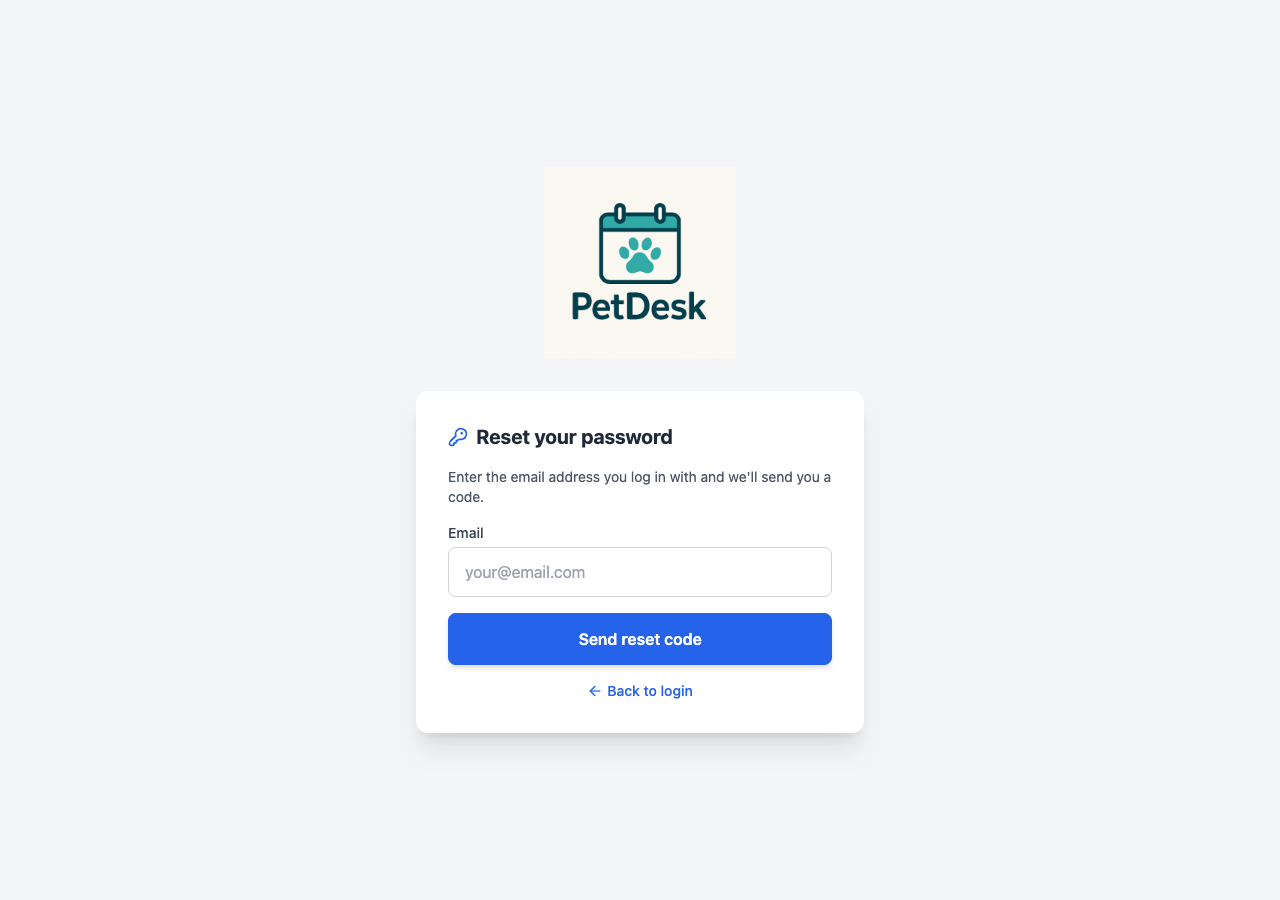
Forgotten it altogether?
You can't reach the page above if you can't log in — so use Forgot password? underneath the login form instead. Enter the email address you log in with and we'll send you a code.
Then set a new one
Enter the code from the email along with your new password. The code lasts 5 minutes — if it expires, just request another.
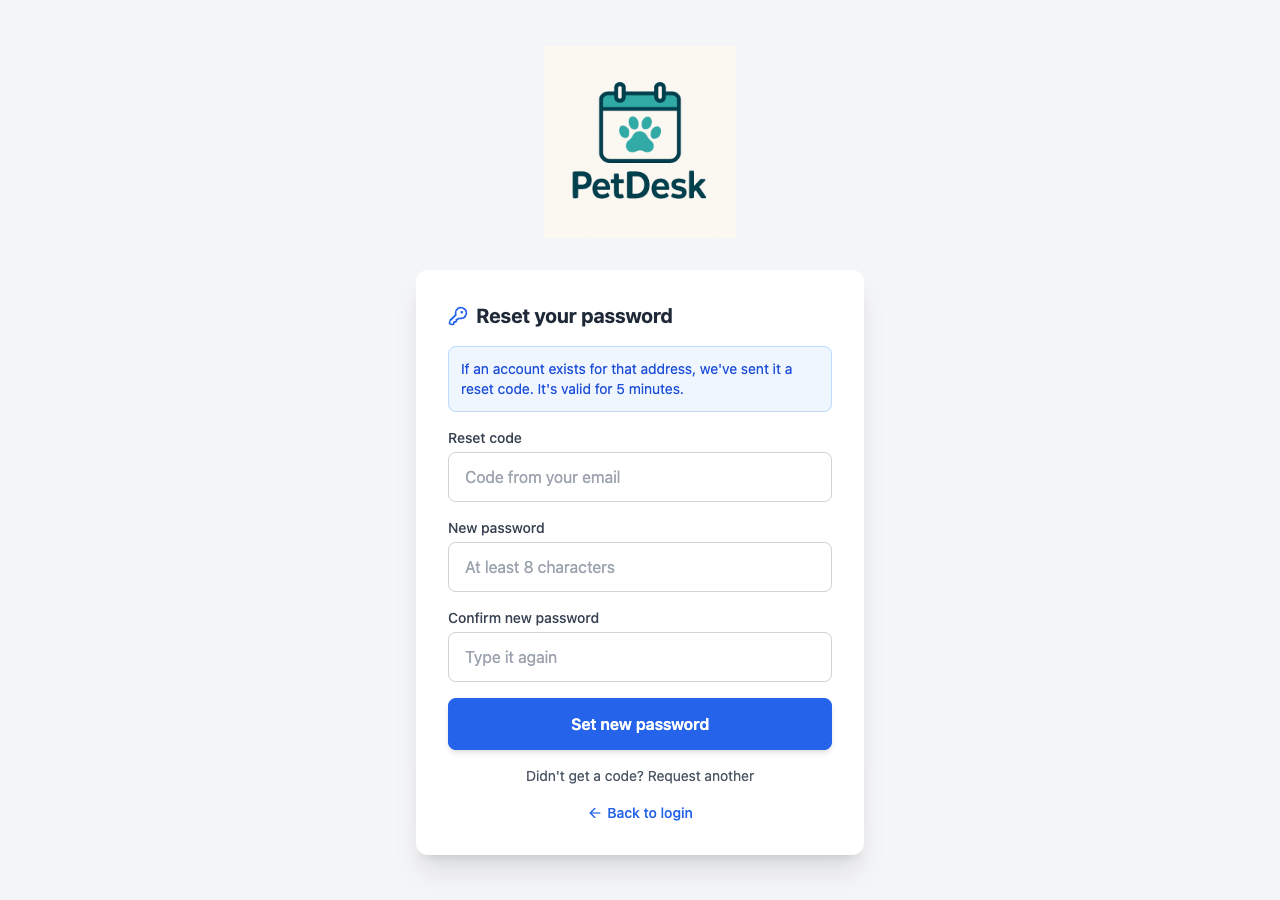
For your security we don't confirm whether an address has an account, so you'll see the same message either way. If no code arrives, check the address is the one you log in with, and look in your spam folder. You can only request one code every 5 minutes.