Your customer portal link and QR code
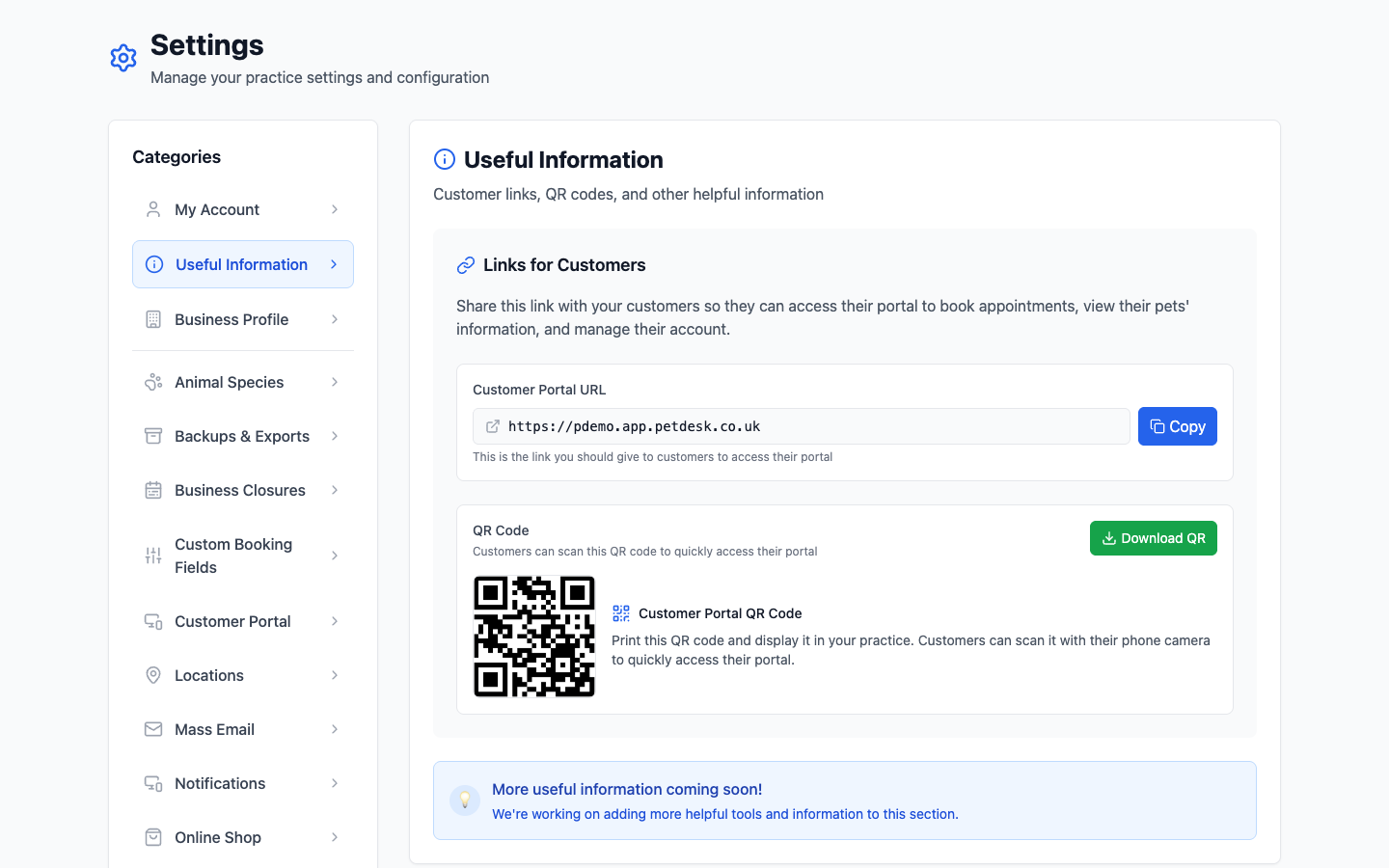
Settings then Useful Information holds the web address to give customers for their portal, with a Copy button, and a printable QR code for the same address. Print the QR code and put it on the counter so customers can reach the portal with a phone camera instead of typing anything.
Your customers reach their portal through one web address, and PetDesk gives you both the link and a printable QR code for it. Go to Settings and choose Useful Information — it's the second item in the list.
Where to find them
The page has two things on it: your customer portal address with a Copy button beside it, and a QR code for the same address underneath.
The link
This is the one to give customers — put it in your email signature, on your Facebook page, on appointment cards. Click Copy rather than retyping it; it's easy to lose a letter and send someone to a page that doesn't exist.
The QR code
Click Download QR and you get an image file you can print. Stick it on the counter, on the back of the door, or on your price list. Customers point a phone camera at it and land straight on the portal without typing anything — which in practice is the difference between people signing up and not bothering.
If you change your web address
The link and the QR code both change with it. Download a fresh QR code and reprint anything you've put on display — the old code keeps working for 12 months and then stops.
Worth doing before you order anything printed in quantity: settle on the web address you want first, then print.