
Testimonials on your website
Settings then Testimonials collects what clients say about you. Clients write them in the customer portal or from a review request, and you can add ones you received another way. Nothing appears on your website until you publish it, and only testimonials whose writer agreed to share them can be published. Published ones show in a reviews section near the bottom of your website (headed What Our Customers Say in the Classic design), or wherever you place a Testimonials block.
Testimonials are what your clients say about you, kept in PetDesk and shown on your website. Clients can write them in the customer portal, and you can add ones you've received by email, card or in person. Nothing appears on your website until you publish it. You'll find them all in Settings → Testimonials.
1. How clients leave a testimonial
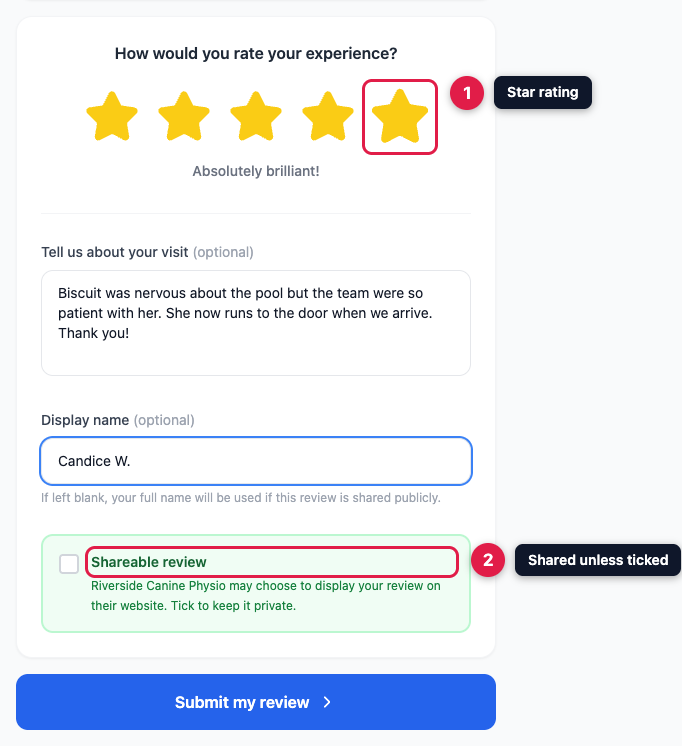
A client can review a past appointment from My Appointments in the customer portal. If you've switched on review requests, the text or email after their appointment takes them straight to the same page. They choose a star rating, write about their visit, and can give a shorter name to show, such as "Candice W.".
A testimonial is shareable unless the client ticks the box to keep it private. Private ones still reach you, but you can't publish them.
2. Adding one yourself
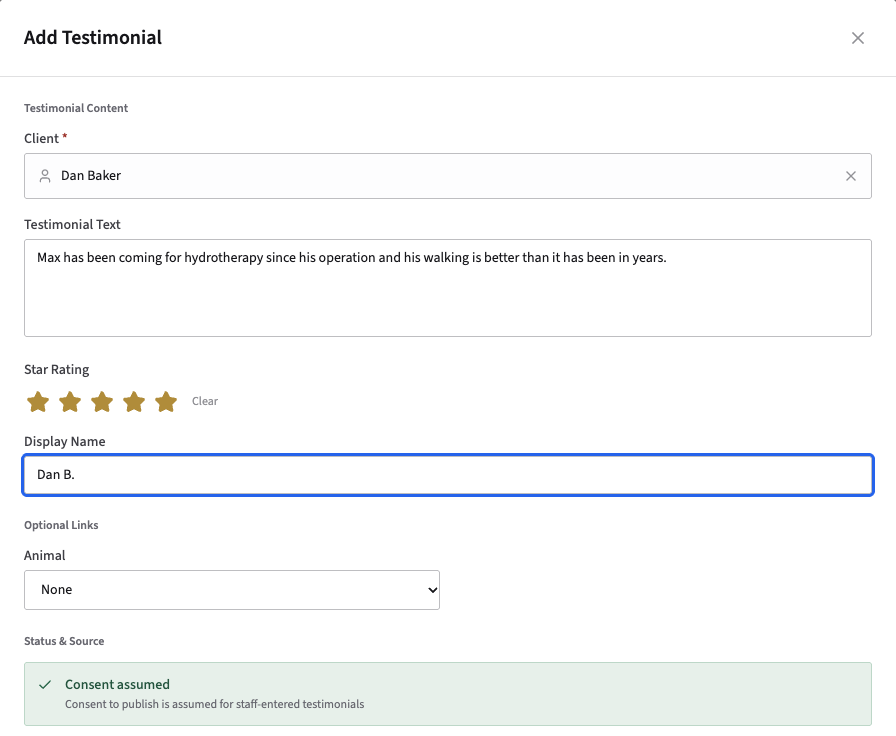
Click Add Testimonial. Search for the client by name or email and pick them, paste in what they said, choose a star rating, and fill in Display Name if you don't want their full name shown. You can link it to one of their animals, a service, a staff member or a location. Click Create Testimonial.
PetDesk assumes the client agreed to share testimonials you add yourself, so check with them before you publish.
3. Publishing
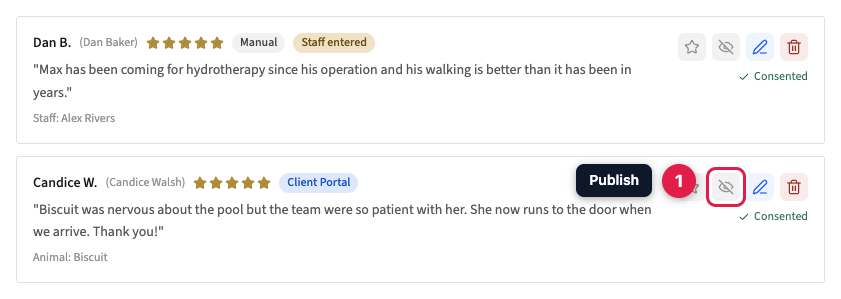
Each testimonial shows the name, rating, where it came from (Client Portal, or Manual for ones you added) and whether the client agreed to share it. On the right of each:
- The eye publishes it to your website, or unpublishes it. A crossed-out eye means it isn't on your website.
- The star marks it as featured, so it shows first.
- The pencil edits it, and the bin deletes it.
The eye and star only appear when the client agreed to share. Use the filters along the top to find unpublished ones, a star rating or a source.
4. On your website
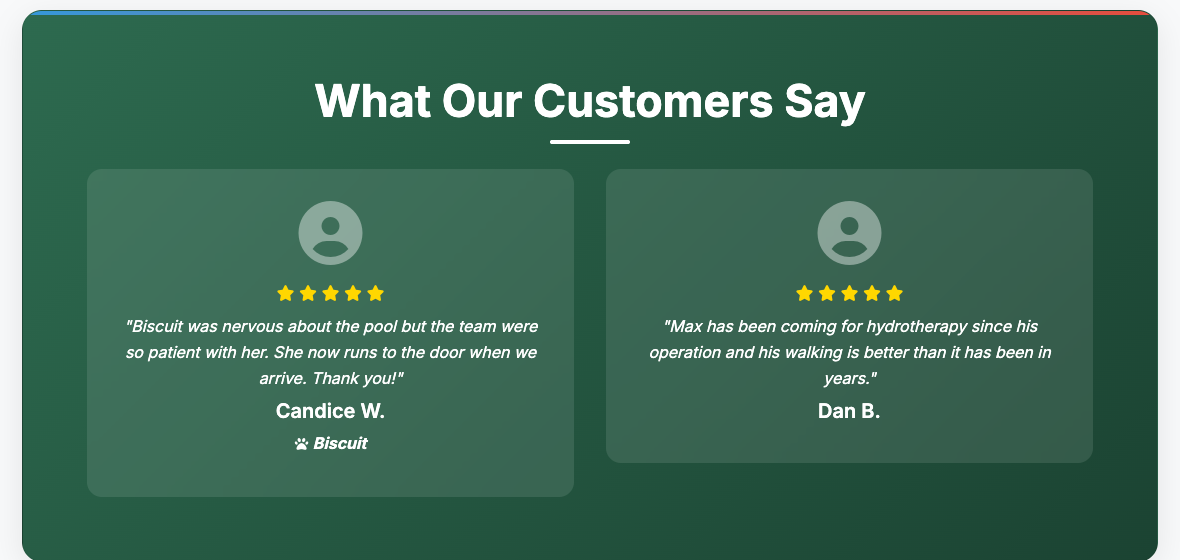
Published testimonials appear in their own section near the bottom of your website, featured ones first, with the star rating, the display name and the pet's name if you linked one. Its heading depends on your website's design: What Our Customers Say in Classic, shown below, Kind words from our clients in Meadow, What our clients say in Clinic and Reviews in Studio.
To put them somewhere else on the page, add a Testimonials block to one of your sections in Settings → Website Editor. When you do, the automatic section is no longer shown, so they don't appear twice.