
Changing a customer's details
Open a customer from the Clients list to see their contact details, notes, additional contacts and every animal they own, with Quick Actions down the right. Edit Client changes their details — the mobile number matters most, because it is where reminders and confirmations go. When a customer stops coming, set them to not active rather than deleting them.
Open a customer from the Clients list, or from any booking or animal attached to them. Everything about that customer lives on one page, with a column of Quick Actions down the right.
What's on the record
Their contact details and address, notes, additional contacts, and every animal they own. The Client Summary on the right gives you the quick version.
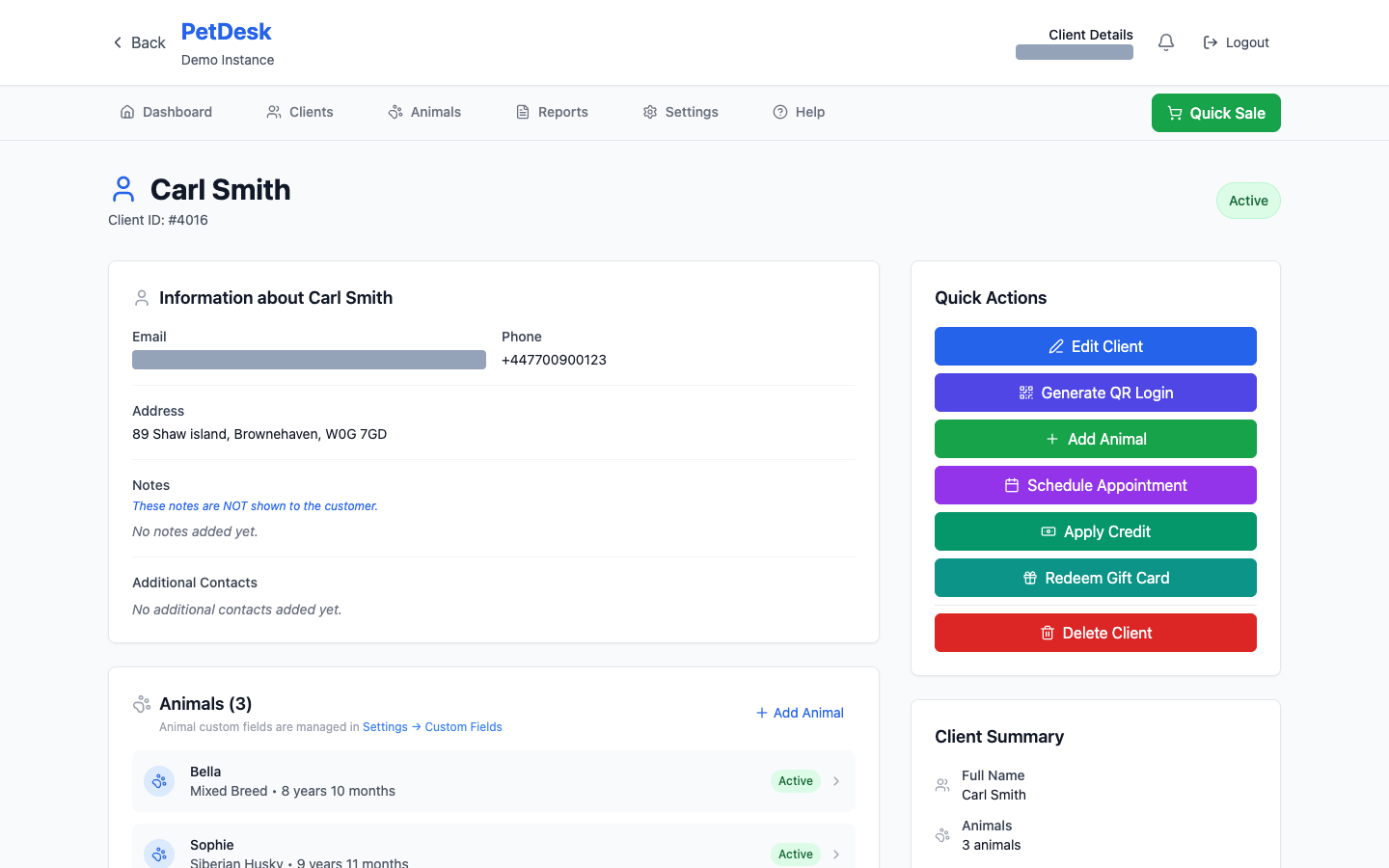
Changing their details
Click Edit Client. Name, email, phone and address are all editable. Get the mobile number right — it's what appointment reminders and confirmations are sent to, and a wrong digit means the customer simply never hears from you and you never find out why.
Additional contacts
For the second person who might bring the dog in — a partner, a grown-up child, a dog walker. It saves the guesswork when somebody you don't recognise turns up for a collection.
What else you can do from here
- Generate QR Login — get the customer into their portal without them needing to remember anything.
- Add Animal — a new pet for this customer, with the owner already filled in.
- Schedule Appointment — start a booking with this customer already selected.
- Apply Credit and Redeem Gift Card — put money on their account.
Customers who've stopped coming
Set them to not active rather than deleting. They drop out of your everyday lists, but their history, their animals and their bookings all survive — which matters if they come back, and matters more if you're ever asked about work you did.
Delete Client is the red button at the bottom of Quick Actions for a reason. It's for a record created by mistake, not for tidying up. Deleting takes the customer's animals and history with them.
Two records for the same person?
It happens — usually someone books online with a different email than the one you had. Don't delete either of them. The Find Duplicate Customers report under Reports finds them and merges them properly, keeping both sets of history.