
Taking deposits in cash or by bank transfer
Offline deposits let you take a deposit outside PetDesk and record it by hand, with no SumUp account needed. Switch it on in Settings then Payment Settings, and new bookings offer Hold until deposit received. A held booking keeps its slot on the diary but sends no reminders or confirmation until you record the money, and waits in an amber Awaiting Deposit card on the dashboard. Recording the deposit confirms the booking and takes the amount off the balance due.
Plenty of businesses take a deposit in cash or by bank transfer and have never wanted a card machine. Offline deposits are for them: PetDesk holds the appointment until the money arrives, you record it when it does, and everything after that — the balance due, the invoice, the reports — works exactly as it would for a card deposit.
No SumUp account needed. This is the one deposit feature that doesn't sit behind the SumUp connection, because it exists for people who don't take card payments at all.
1. Switch it on
Go to Settings, choose Payment Settings, and scroll to Offline Deposits (Cash / Bank Transfer) at the bottom. Turn on Hold bookings until a deposit is received and set a default amount, then click Save Offline Deposit Settings.
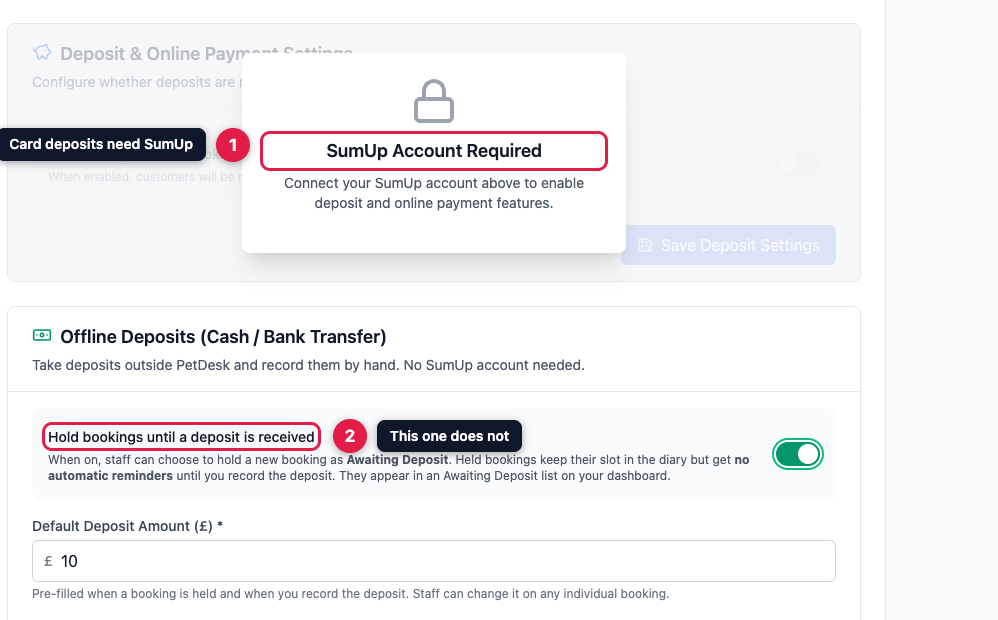
The amount is only a starting point — it's filled in for you each time, and you can change it on any individual booking.
Use one method or the other. If online deposits are already switched on in the section above, PetDesk warns you. Running both means customers booking online pay by card while your staff also chase a cash deposit for the same appointment.
2. Holding a booking
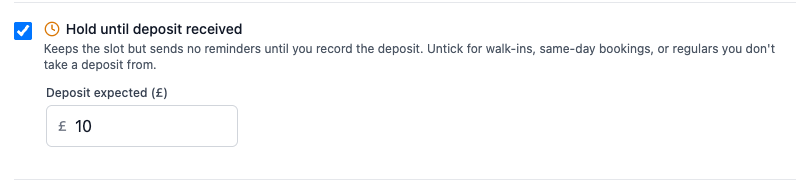
With it switched on, every booking you make offers Hold until deposit received, already ticked, with the expected amount underneath. Untick it for a walk-in, a same-day appointment, or a regular you'd never ask a deposit from — the choice is yours on every booking.
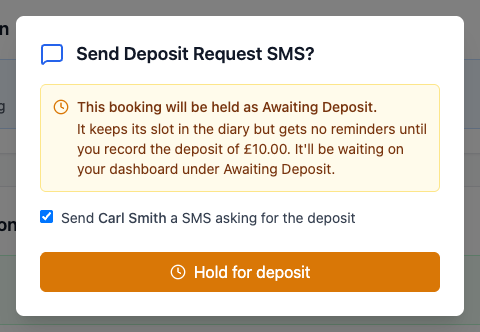
When you save, PetDesk confirms what it's about to do and offers to text the customer asking for the money. The message names the pet, the date and the amount, and asks them to get in touch — there's no payment link, because there's nothing to pay online.
3. What “held” actually means
A held booking keeps its slot. It's on the diary, and nobody else will be offered that time. What it doesn't do is behave like a confirmed appointment: no reminders are sent, and no confirmation goes out, until you record the deposit. That's the whole point — nobody gets texted "see you Thursday" for an appointment they haven't secured.
These are not the same as Pending Booking Requests. That orange bar is customers waiting on your answer. Held bookings are yours, waiting on their money, so they have their own list and their own buttons.
4. Where they wait
Held bookings collect in an amber Awaiting Deposit card on your dashboard, showing who, which pet, what for, and how much you're expecting. Each one has four buttons: Deposit Received, Ask for Deposit to chase them, Cancel, and View Details.
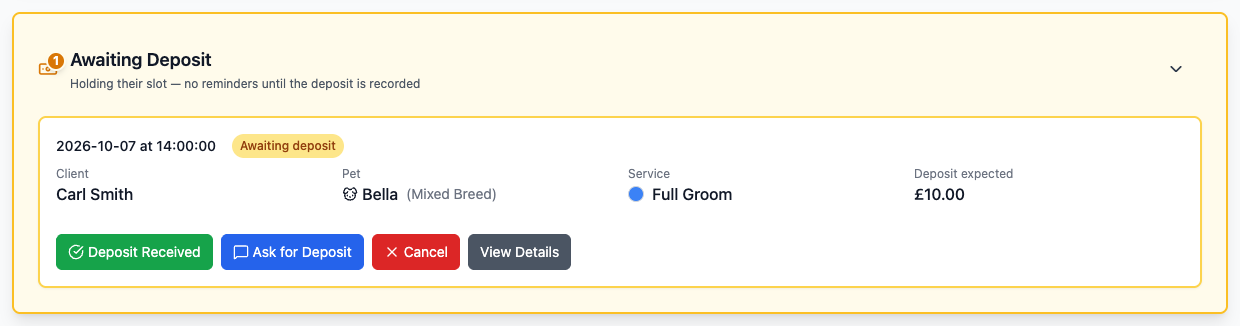
The same controls appear on the booking's own page, so you can deal with it from wherever you happen to be.

5. Recording the money
When the cash is handed over or the transfer lands, click Deposit Received, check the amount — change it if they paid something different — and click Record Deposit. You can send the customer their booking confirmation at the same time.
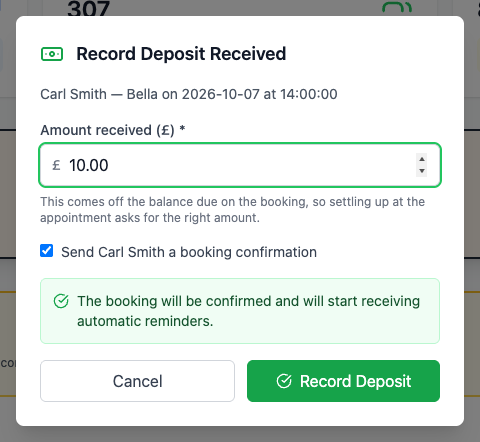
That confirms the booking and starts its reminders. The deposit comes straight off the balance, so when they come in you're asking for the right money rather than working it out in your head.
6. Refunding one
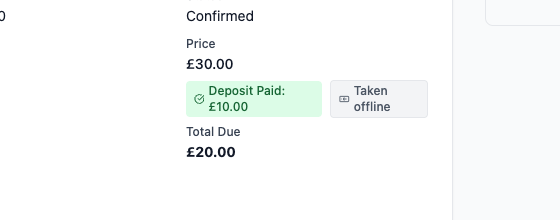
A cash deposit has to go back the way it came, so instead of a Refund button you get a Taken offline badge. Hand the money back or transfer it, then record what happened on the booking as you would for any cancellation. If a customer cancels through the portal and you have automatic deposit refunds switched on, an offline deposit isn't refunded automatically either — it turns up on your list of refunds to deal with by hand.
7. If the deposit never turns up
Nothing is cancelled for you. Once the appointment date has passed, the booking turns red in the Awaiting Deposit card and says so plainly — the deposit never arrived, no reminder was ever sent, and the slot is still being held. Record the deposit if it turned up after all, or cancel it to free the time. The decision stays yours, because “they haven't paid yet” and “they're not coming” are not the same thing.
Several pets in one visit? One deposit covers the lot. Record it once and every pet on the visit is confirmed together.