Exporting your data
Settings then Backups and Exports downloads a copy of your practice data as CSV files in a zip. You choose what to include — customers, animals, bookings, sales, products, staff, services. The export is queued and built in the background rather than produced instantly. The file contains customer contact details in plain readable form, so look after it once downloaded.
Your data is yours, and you can take a copy of it whenever you like. Go to Settings and choose Backups & Exports. What you get is a zip file of CSVs — plain spreadsheet files that open in Excel, Numbers or Google Sheets.
1. Choose what to include
Everything is ticked by default, which is what you want for a proper backup. Untick things if you only need part of it.
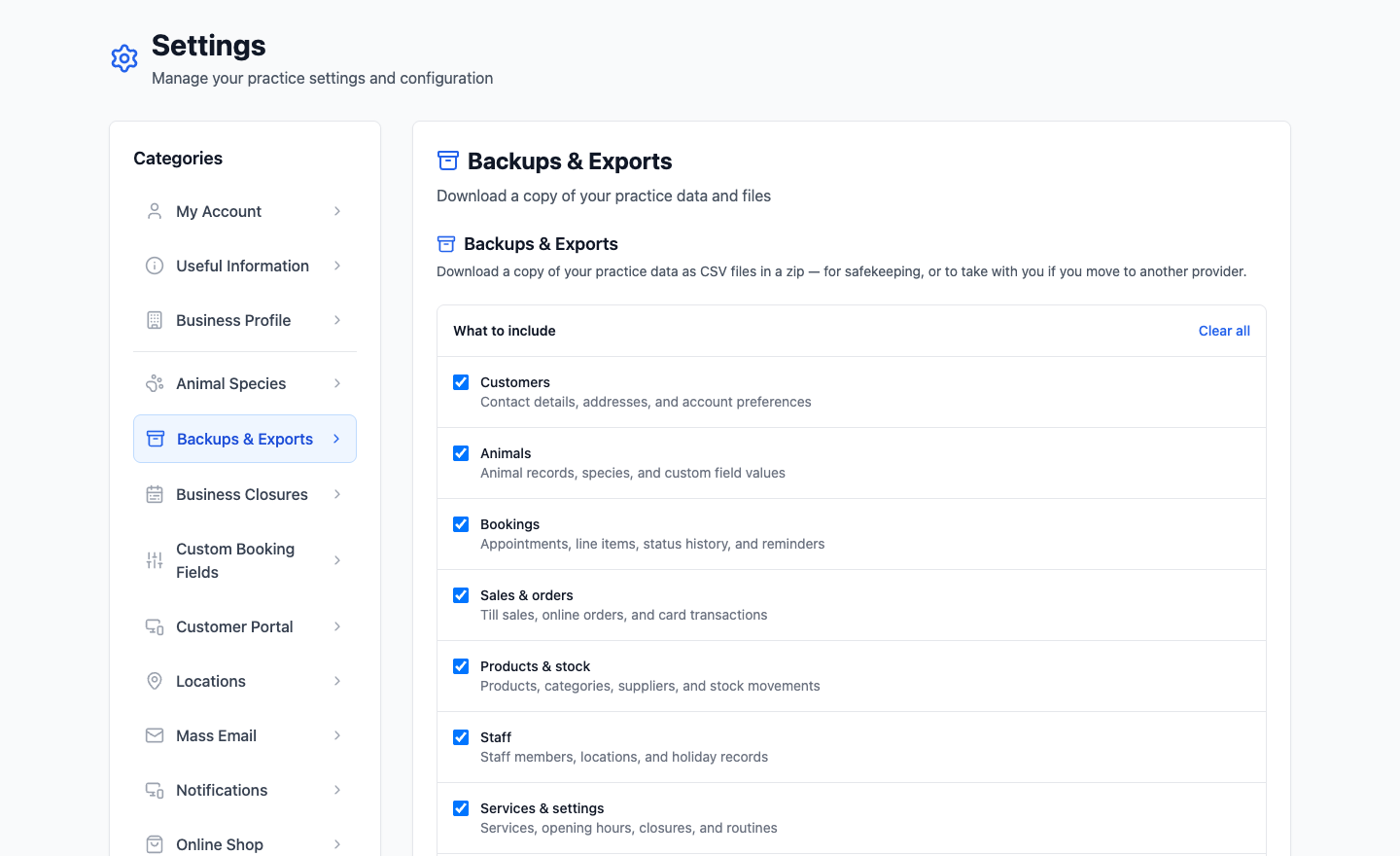
| Section | What's in it |
|---|---|
| Customers | Contact details, addresses and account preferences. |
| Animals | Animal records, species and any custom field values. |
| Bookings | Appointments, line items, status history and reminders. |
| Sales & orders | Till sales, online orders and card transactions. |
| Products & stock | Products, categories, suppliers and stock movements. |
| Staff | Staff members, locations and holiday records. |
| Services & settings | Services, opening hours, closures and routines. |
2. Ask for the export
A full export isn't produced on the spot — it's queued and built in the background, because pulling together several years of bookings takes a moment. You don't need to sit and wait for it.
3. Download the zip
When it's ready you download a single zip containing one CSV per section. Unzip it and each file opens straight into a spreadsheet.
What to actually use it for
- Peace of mind. Your data already lives on replicated servers, so this isn't about us losing it — it's about you having your own copy that doesn't depend on anyone.
- Working in a spreadsheet. Sometimes a pivot table is genuinely the fastest way to answer a question the reports don't cover.
- Giving your accountant the year. Sales and bookings as CSVs, no logins to hand out.
- Leaving. If you ever move to another provider, this is how your data goes with you. We'd rather you didn't, but you shouldn't have to ask.
Look after the file
An export contains your customers' names, addresses and contact details in plain, readable files. Once it's downloaded, it's outside PetDesk and its security is entirely down to you. Don't leave it in a shared Downloads folder or email it around, and delete old ones when you're done with them.